Skip to content

Turn images into polished visuals.

Create a standalone image or a coordinated set for your next launch.

One image. Make it yours.

Compose screenshots, devices, and type on a freeform canvas.

Open canvas

Everything in the editor, shown as it works.

Devices

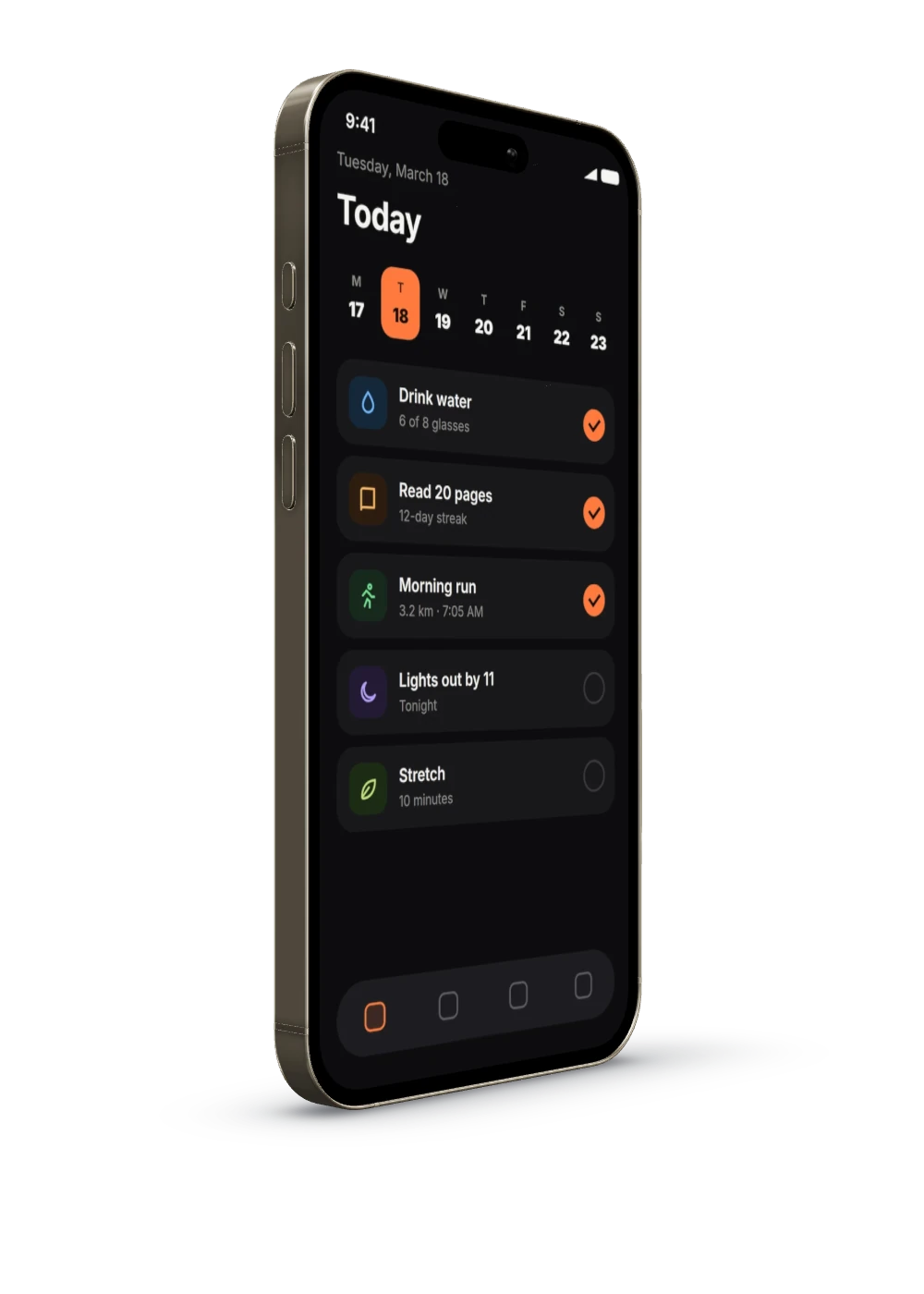
iPhone and MacBook in 3D. Rotate the device and choose a finish. Or use a browser window or a plain frame.
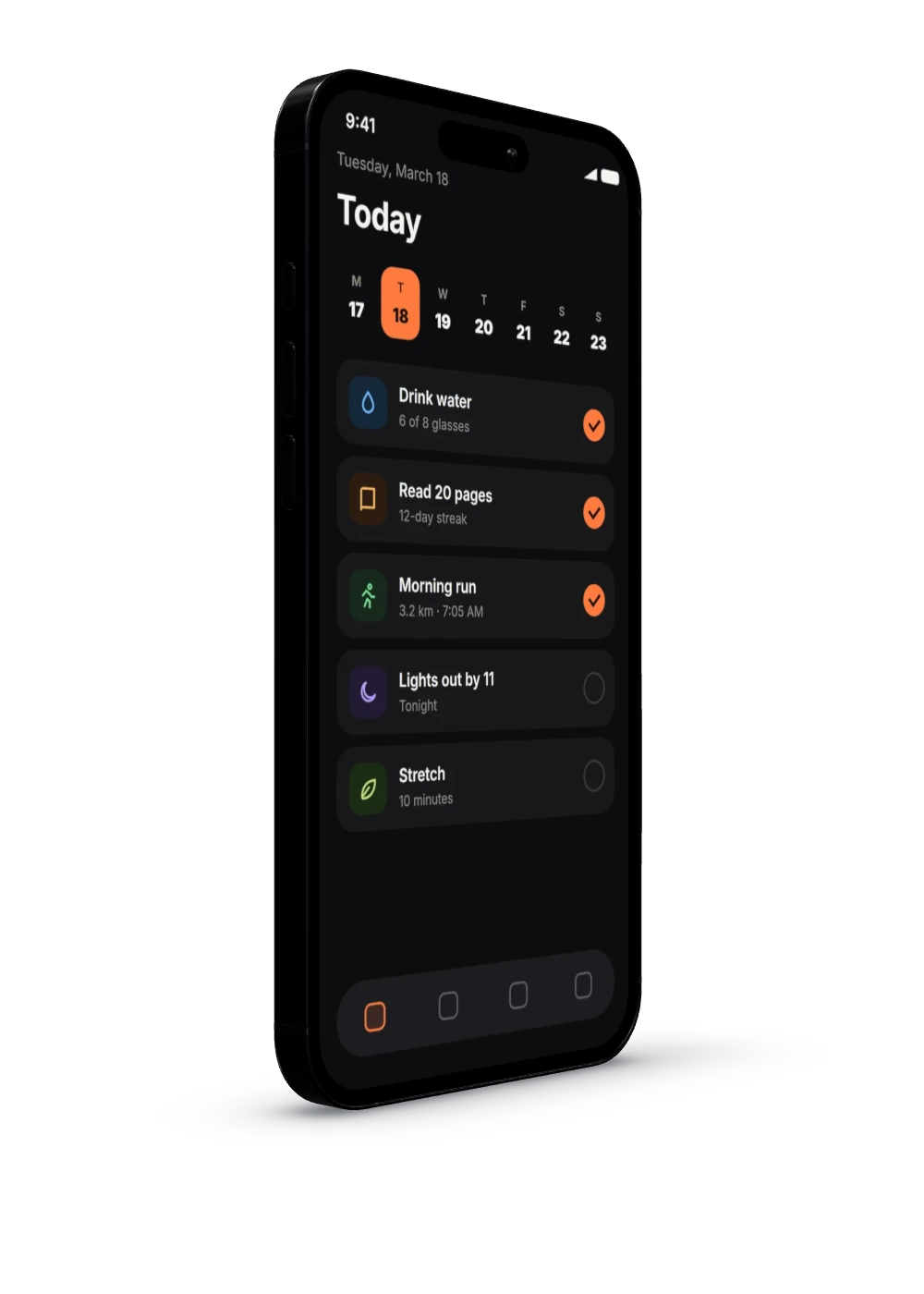
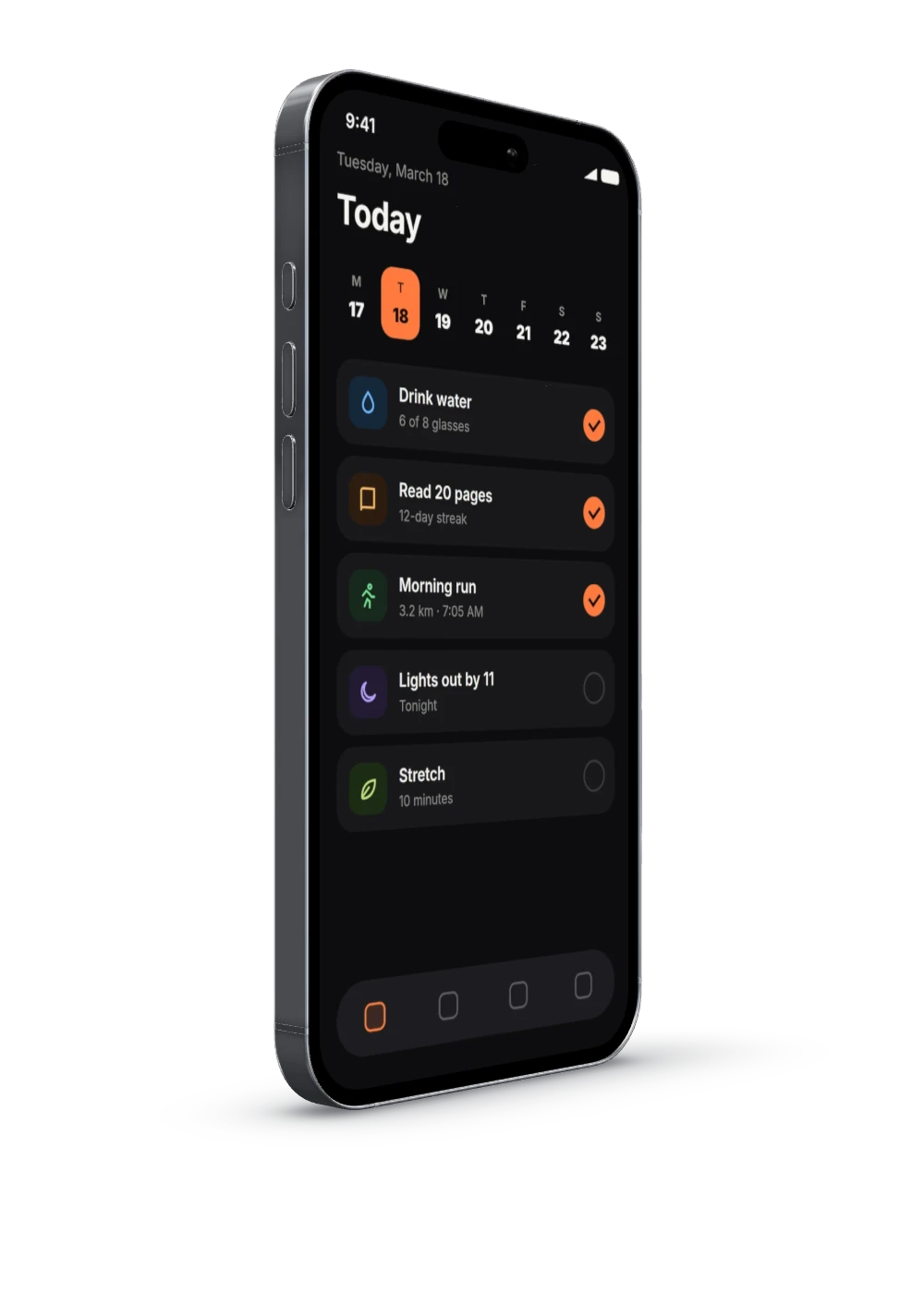
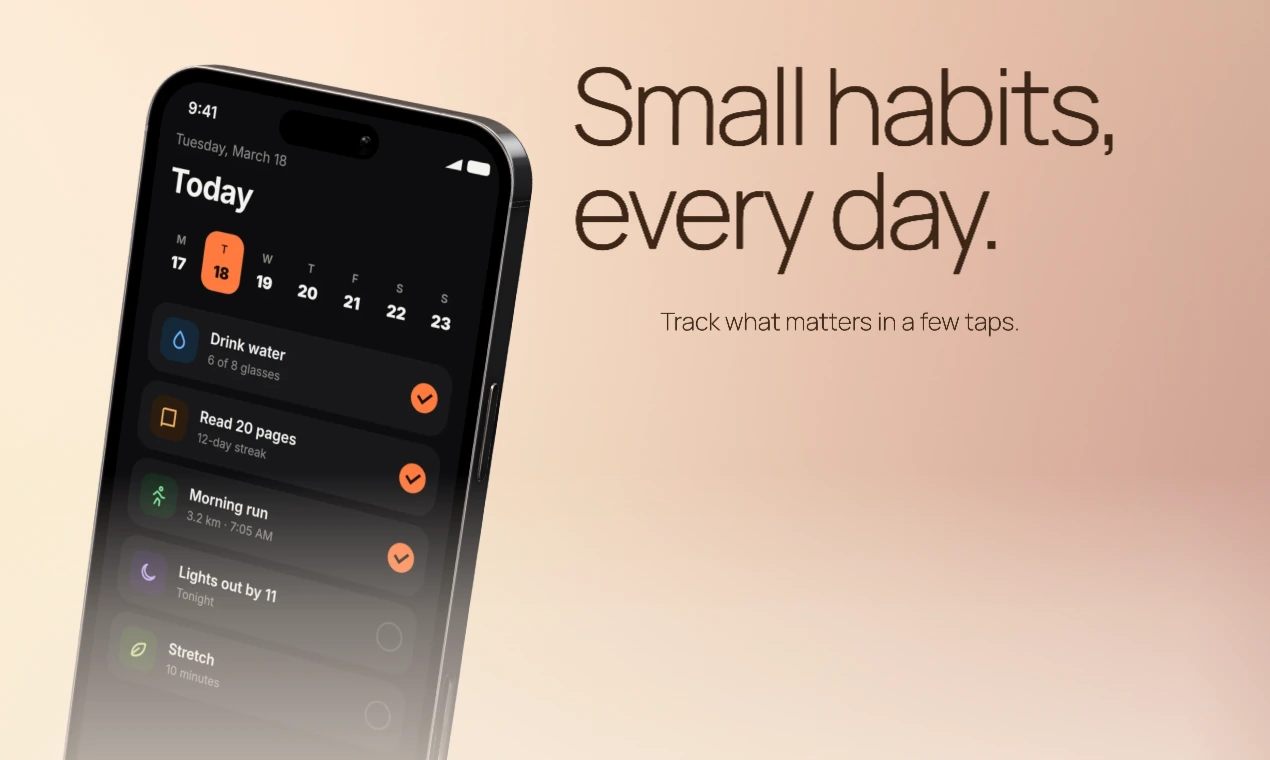
An iPhone in Space Black showing a habit tracker.
Finish Space Black
Backgrounds

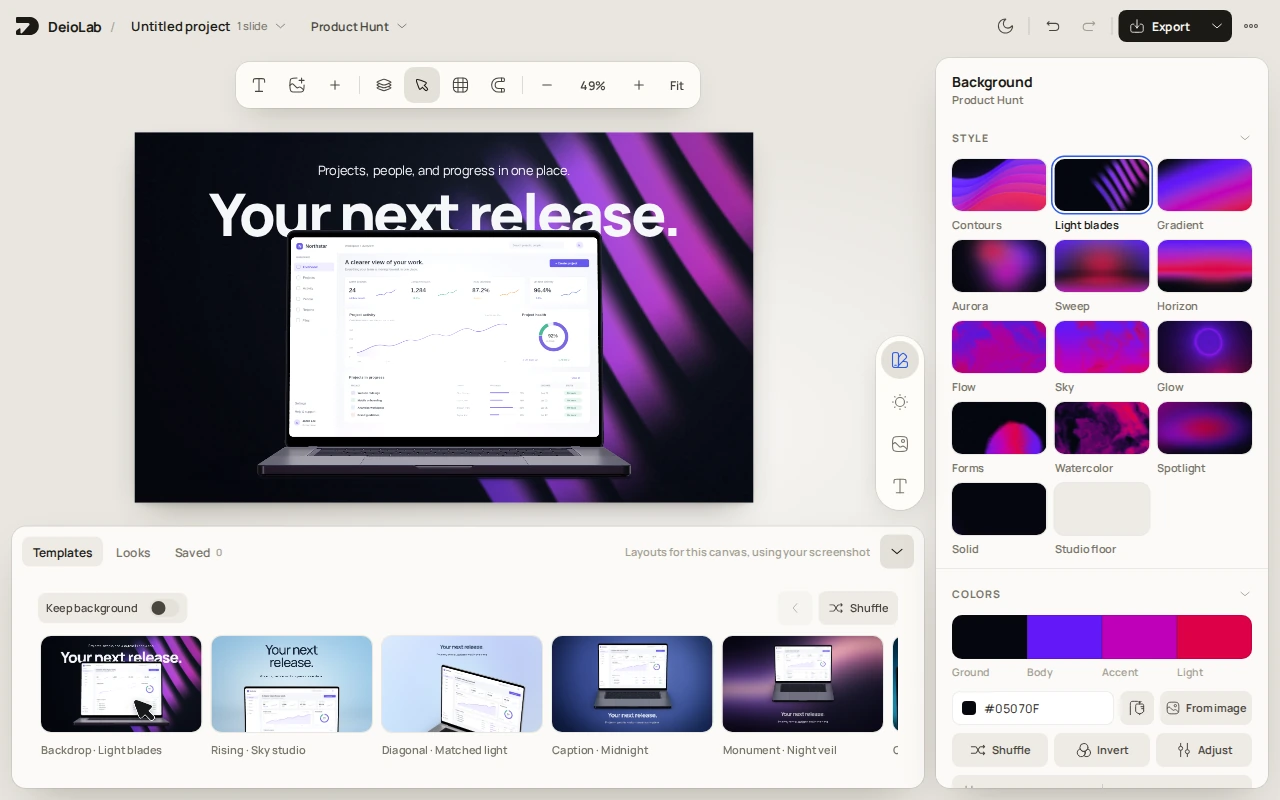
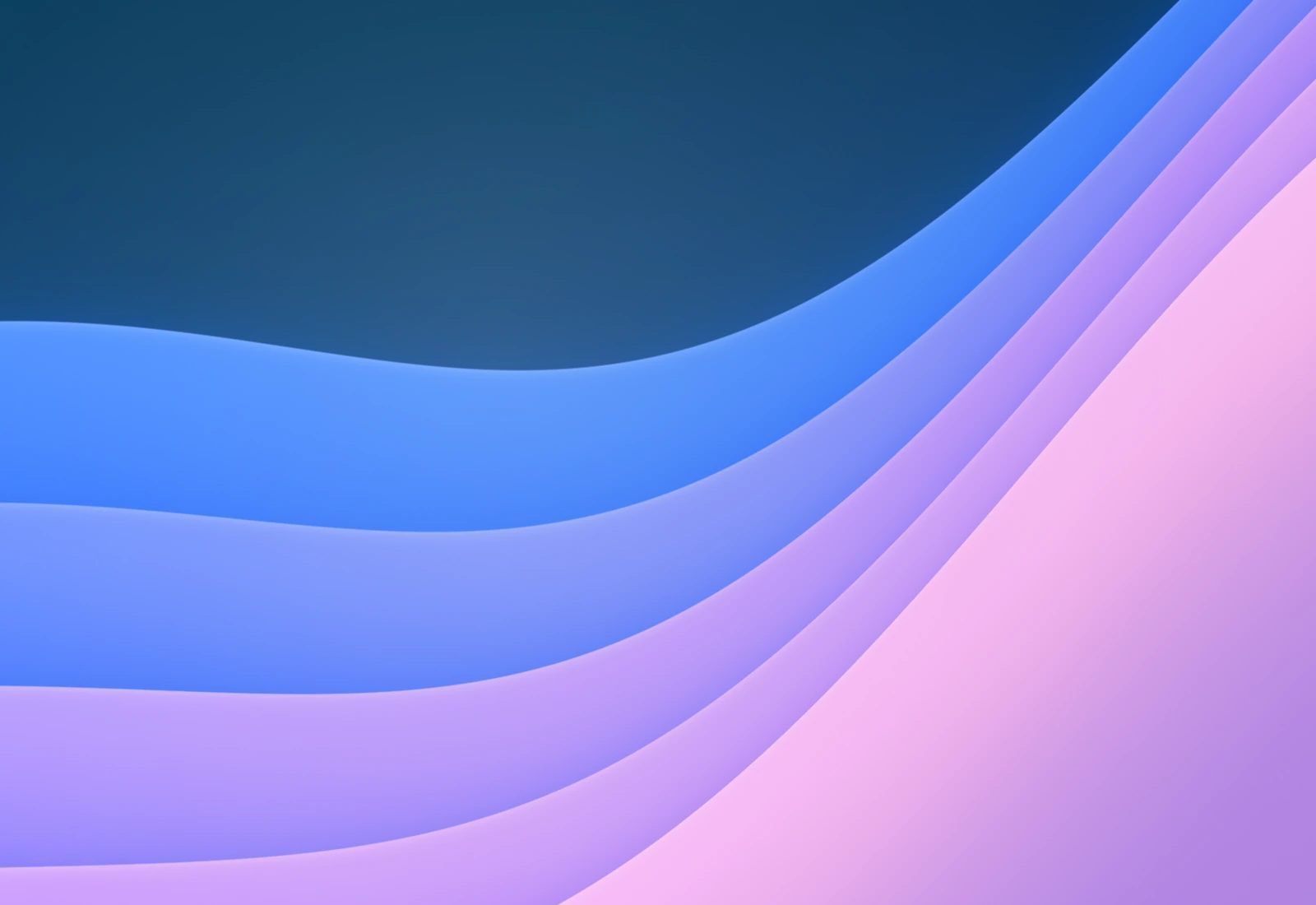
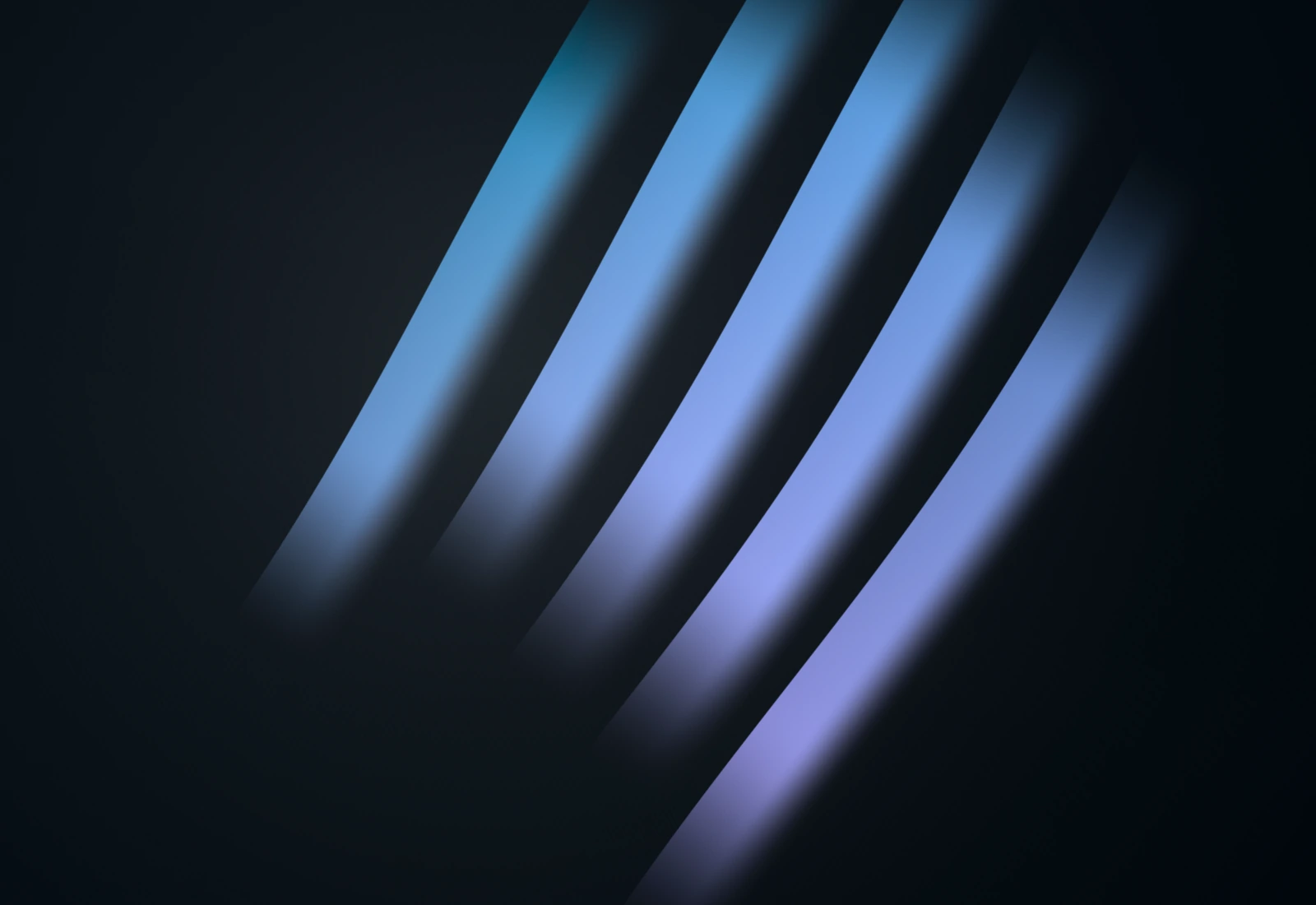
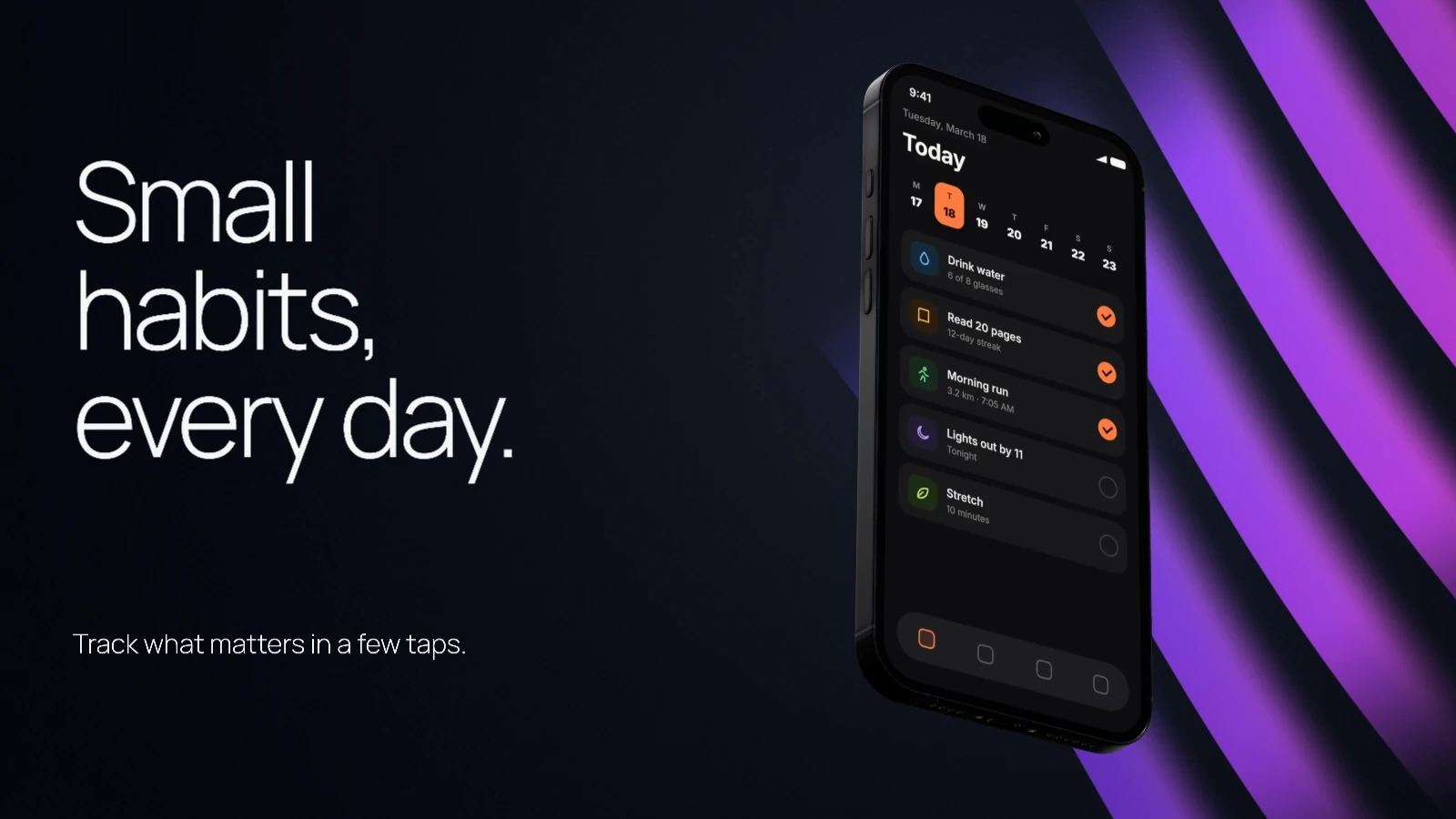
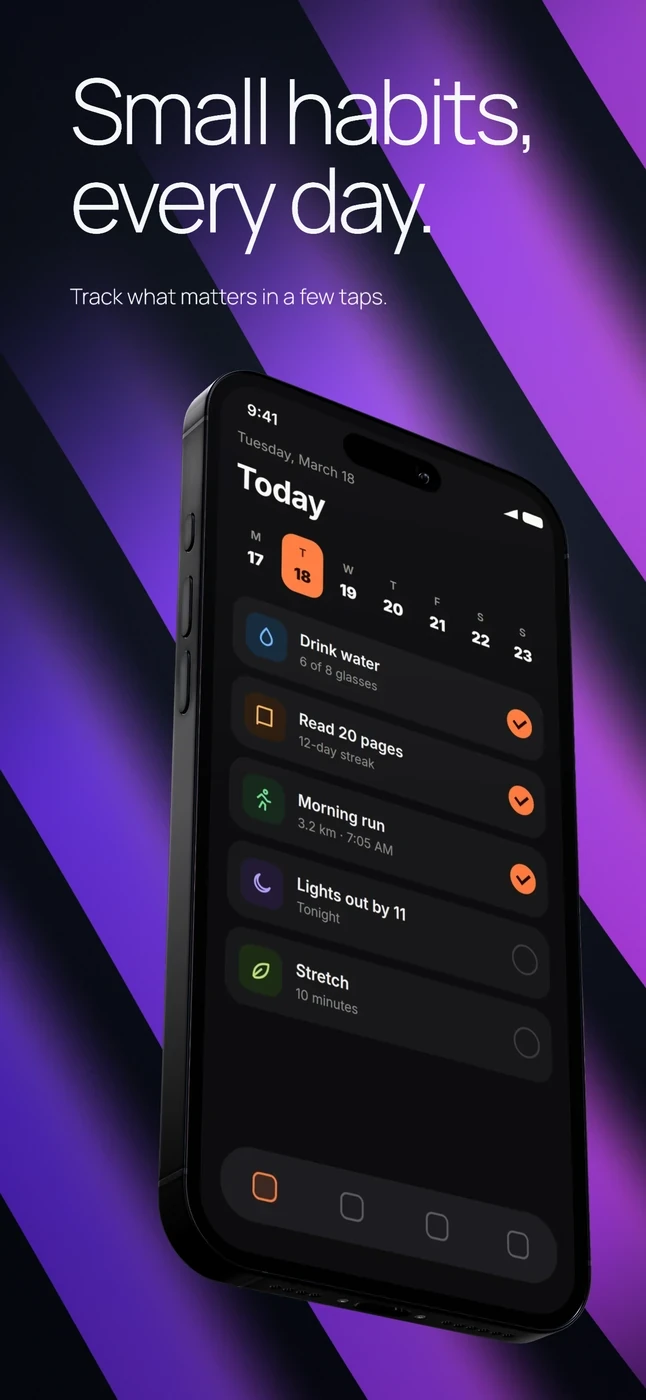
Backgrounds that match. Contours, light blades, gradients, and more. Shuffle changes the colors, light, and texture together.

Contours background.
Lighting

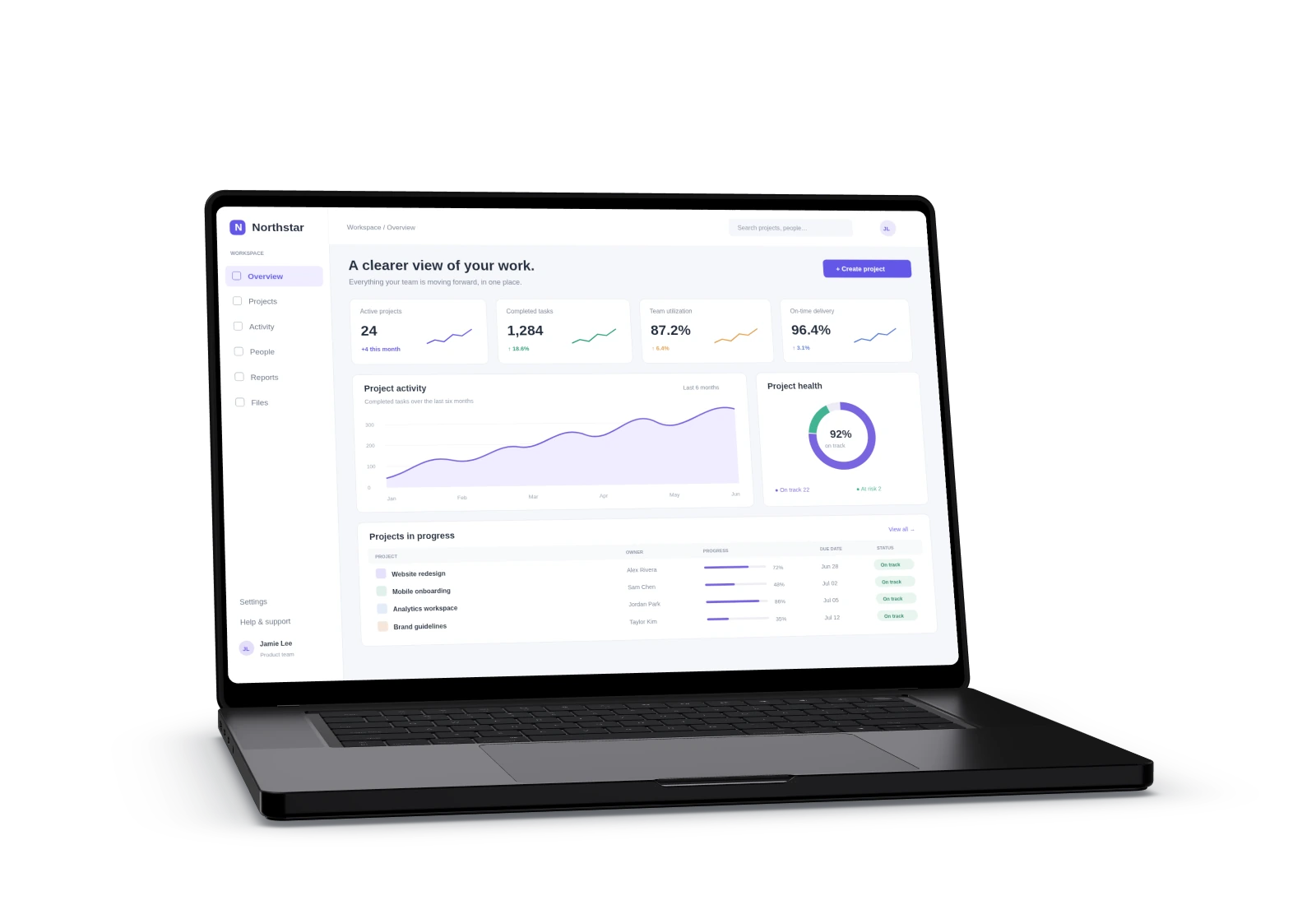
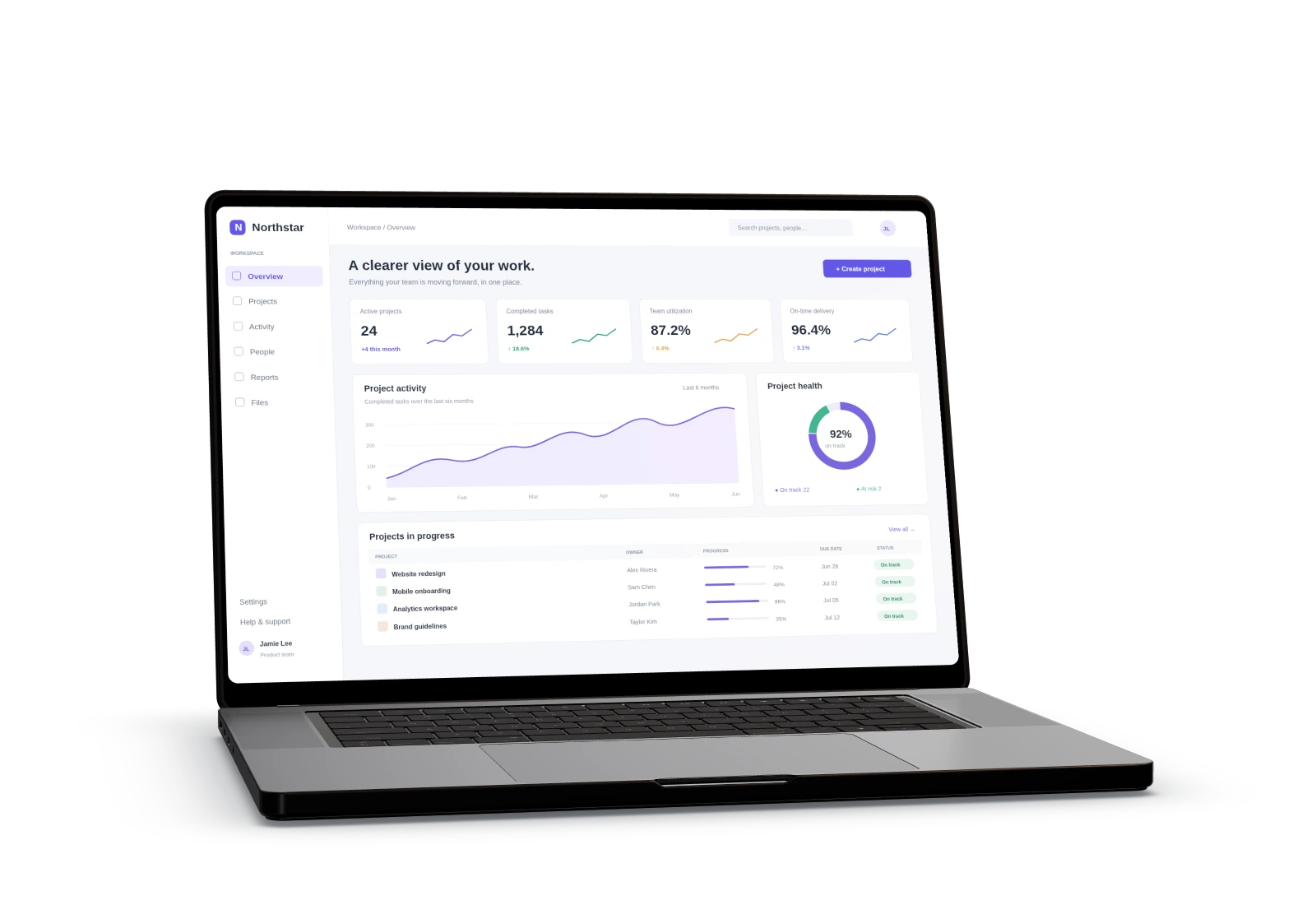
Move the light. Reflections and the shadow on the device follow it.

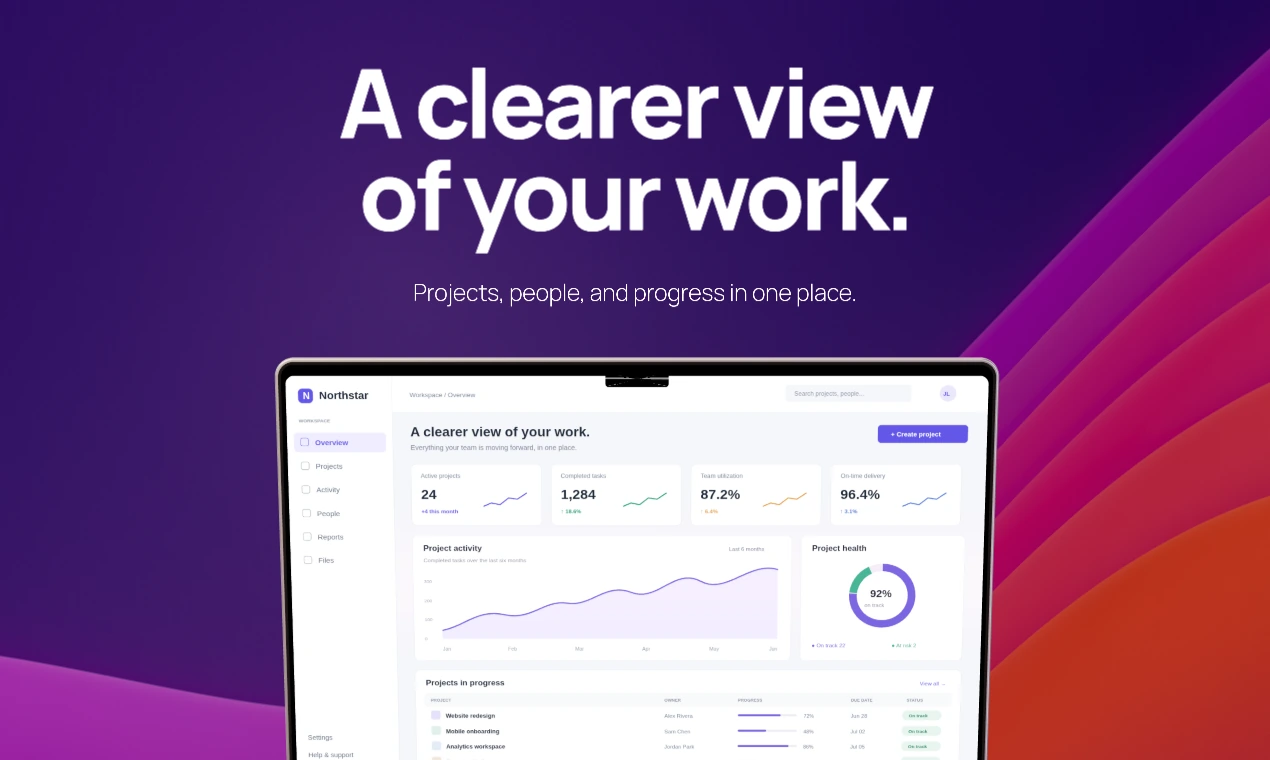
A MacBook with its screen, bezel, and keyboard visible, lit from the left.
Light source
Text

Mix fonts in one headline. Style single words, and place an emoji or a small image inside the text.

Colors

Colors from your screenshot. Pick a palette from your screenshot, then adjust each color.

Templates

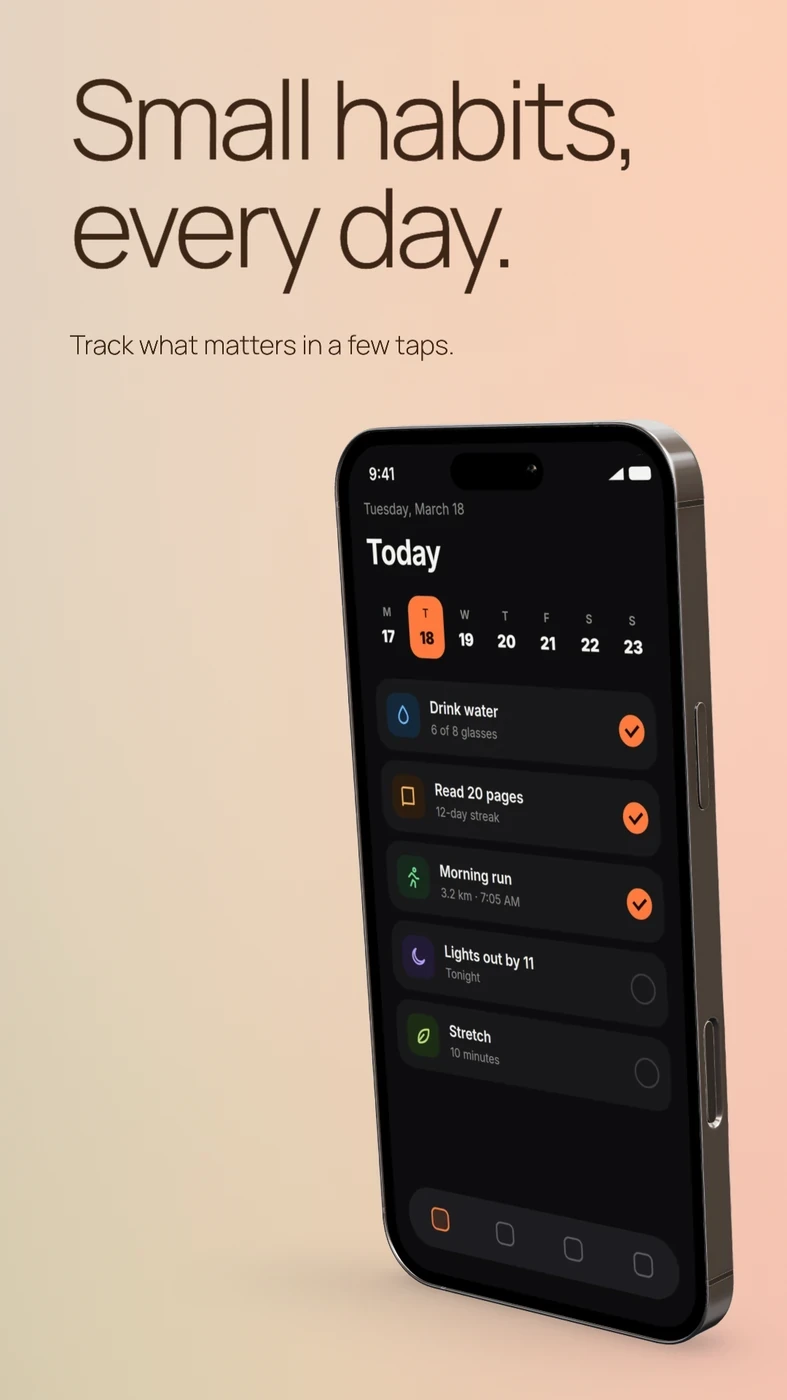
Start from a template. Apply a layout, background, lighting, and text together. Every part stays editable.

  • Masthead template with a phone.MastheadPhone
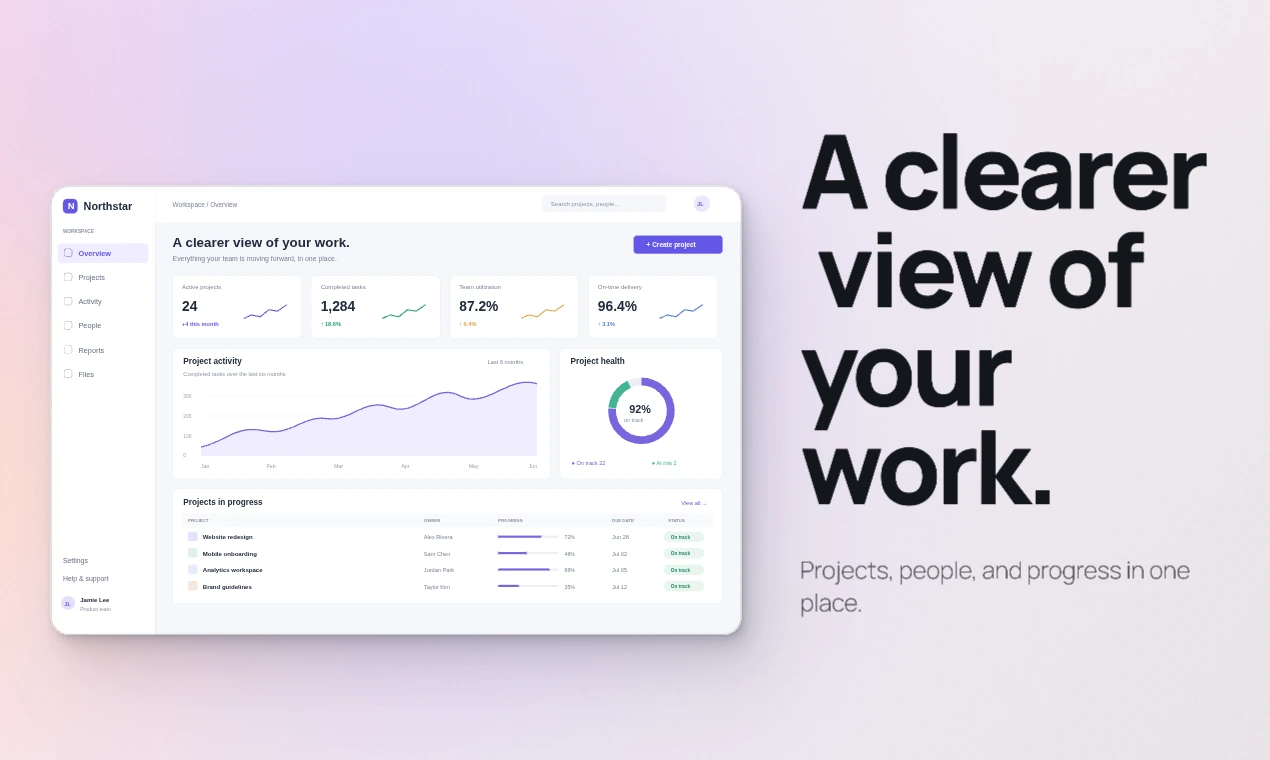
  • Centered template with a laptop.CenteredLaptop
  • Slant template with a clean frame.SlantClean frame
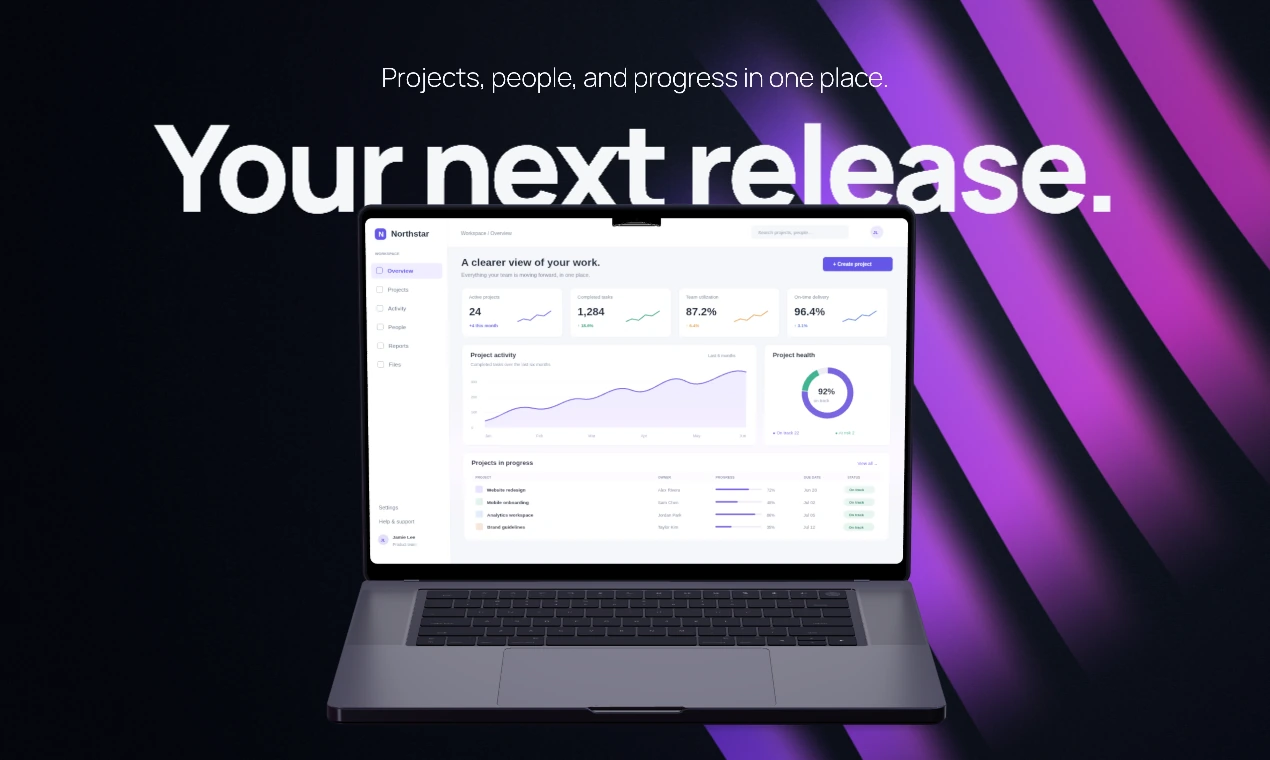
  • Backdrop template with a laptop.BackdropLaptop
Export

PNG, cutout, or layers. Save the whole image, a transparent device, or one PNG per layer.

Video

Screens that move. Use a screen recording or a series of screenshots, then export an MP4.

One image. Every channel.

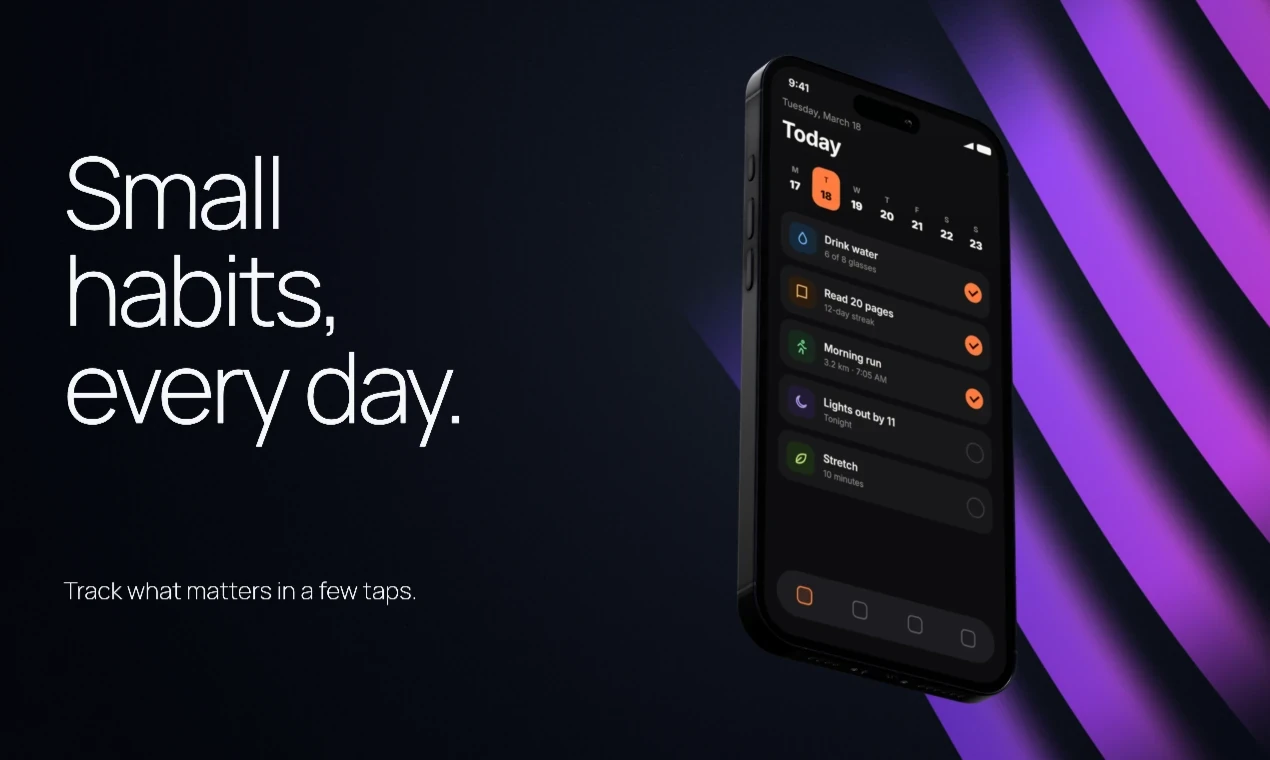
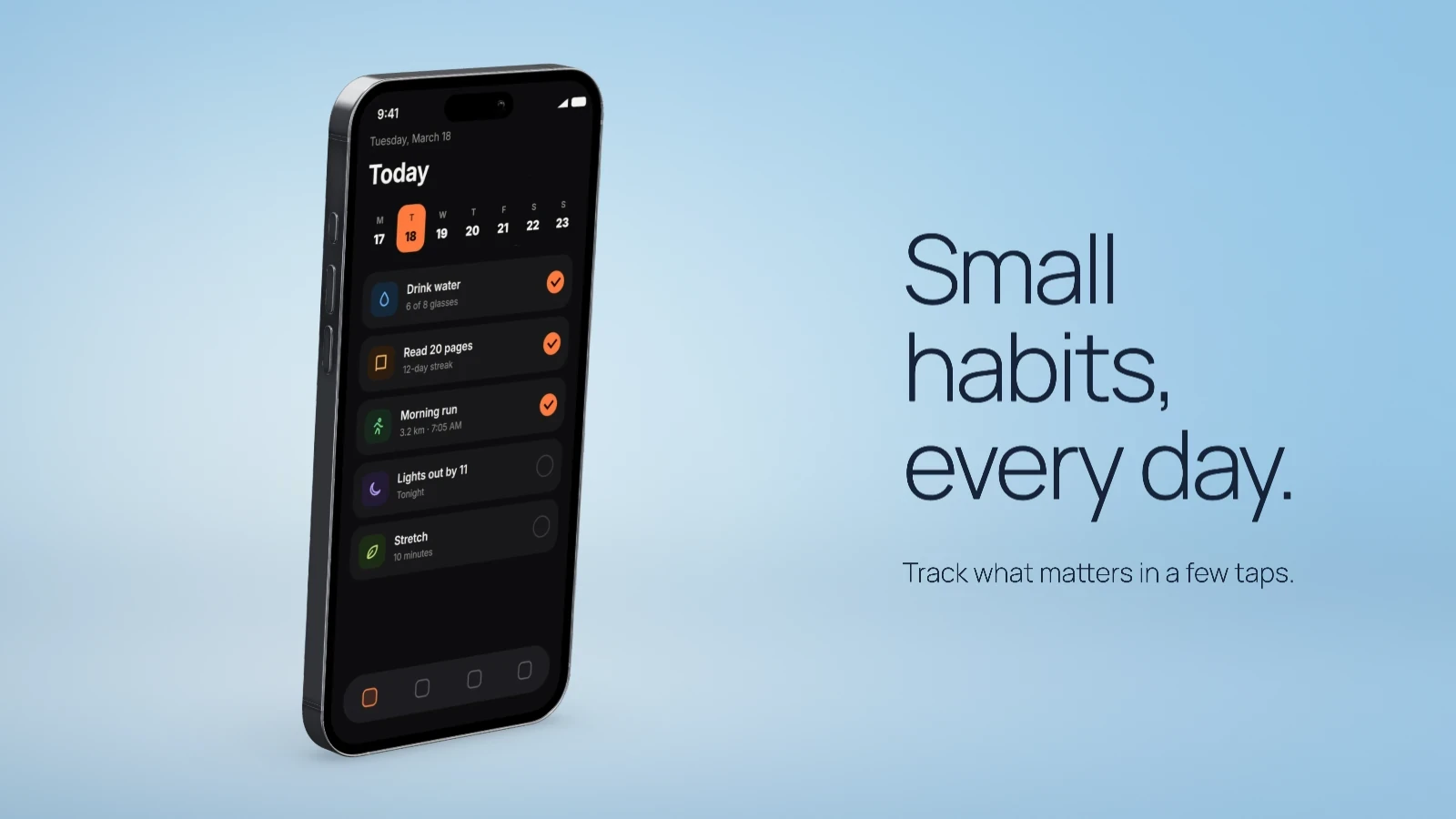
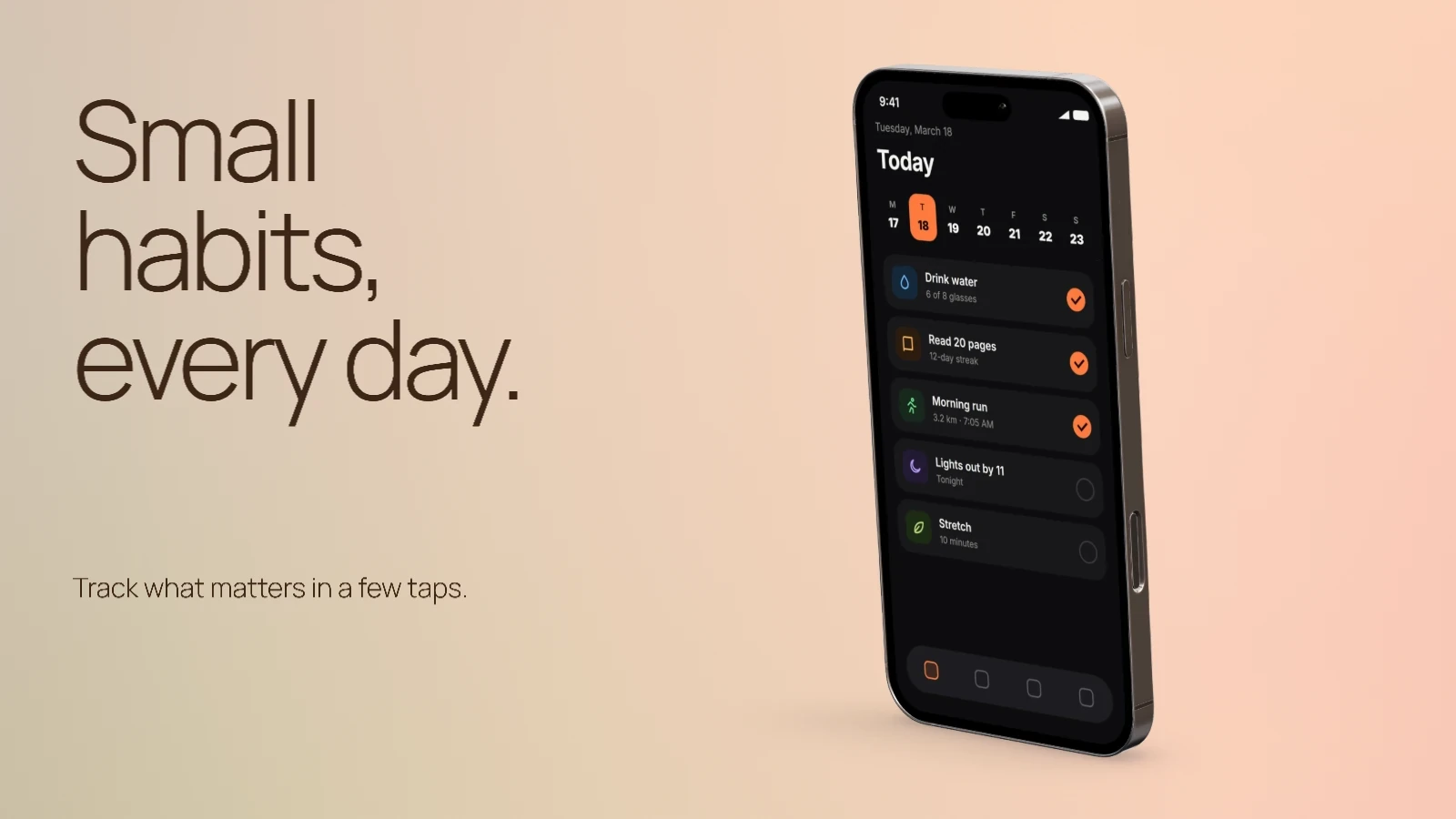
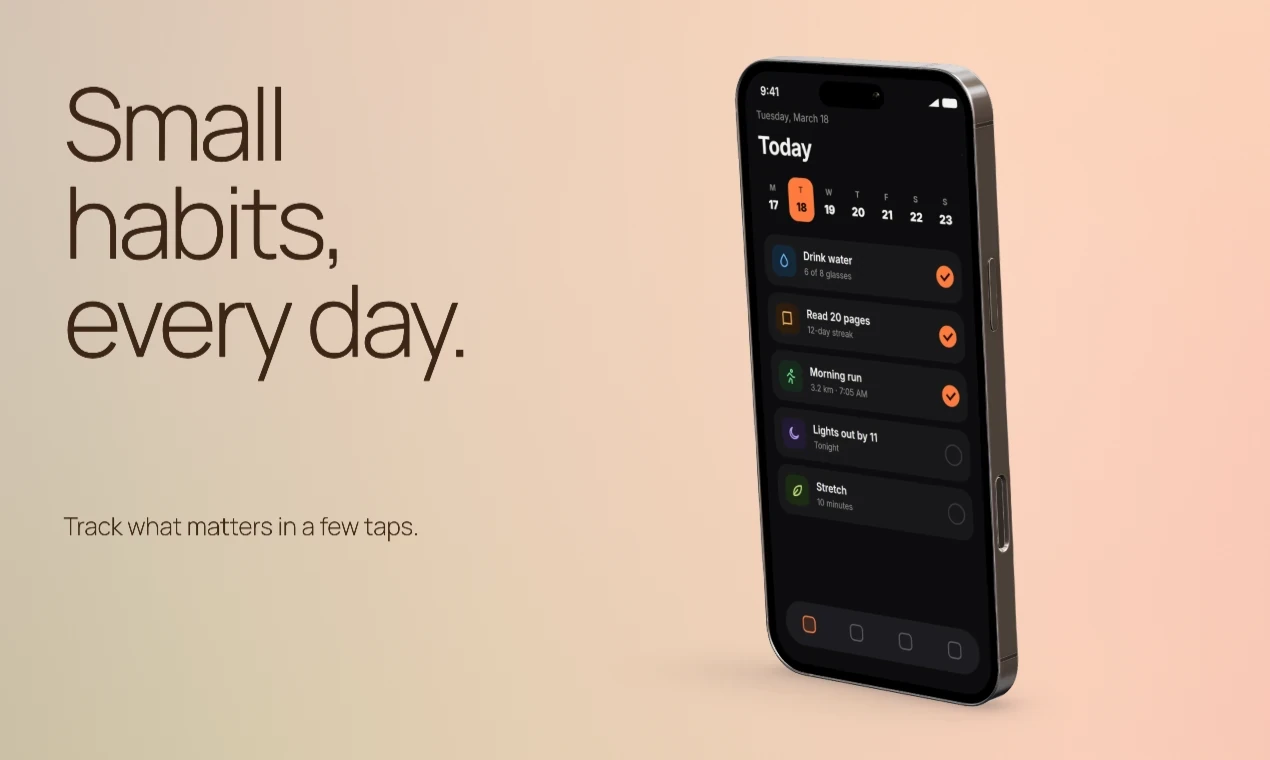
Product Hunt, X, LinkedIn, and both app stores each get their own layout. Your text, colors, and screenshot carry over.
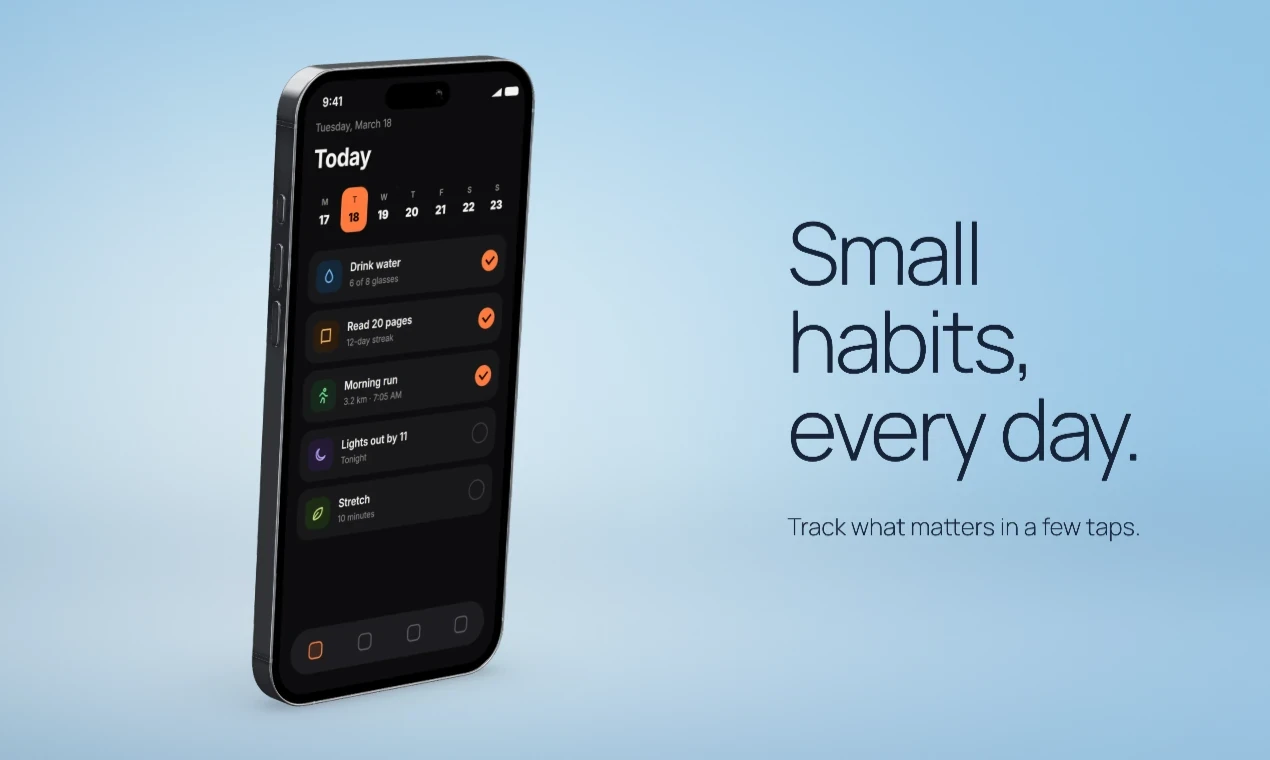
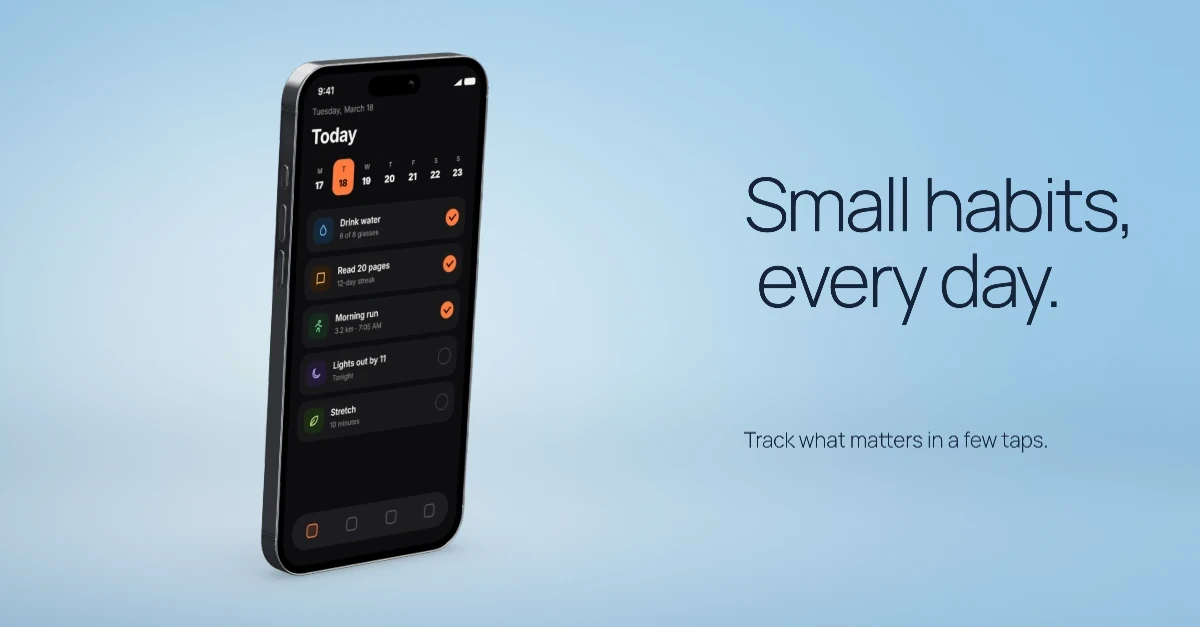
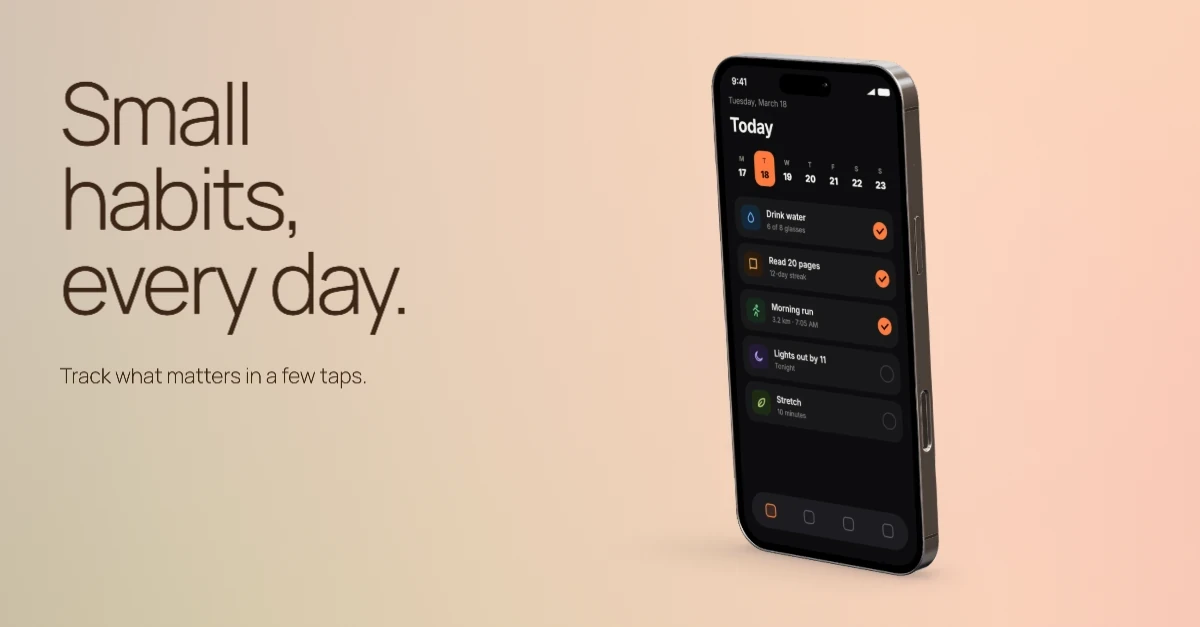
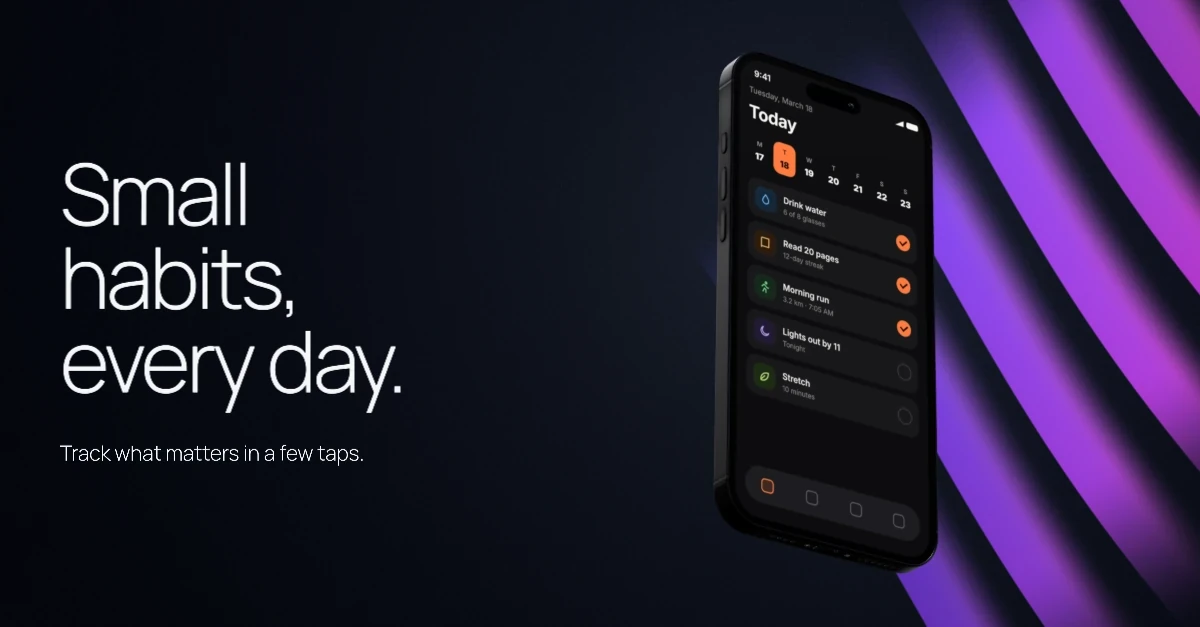
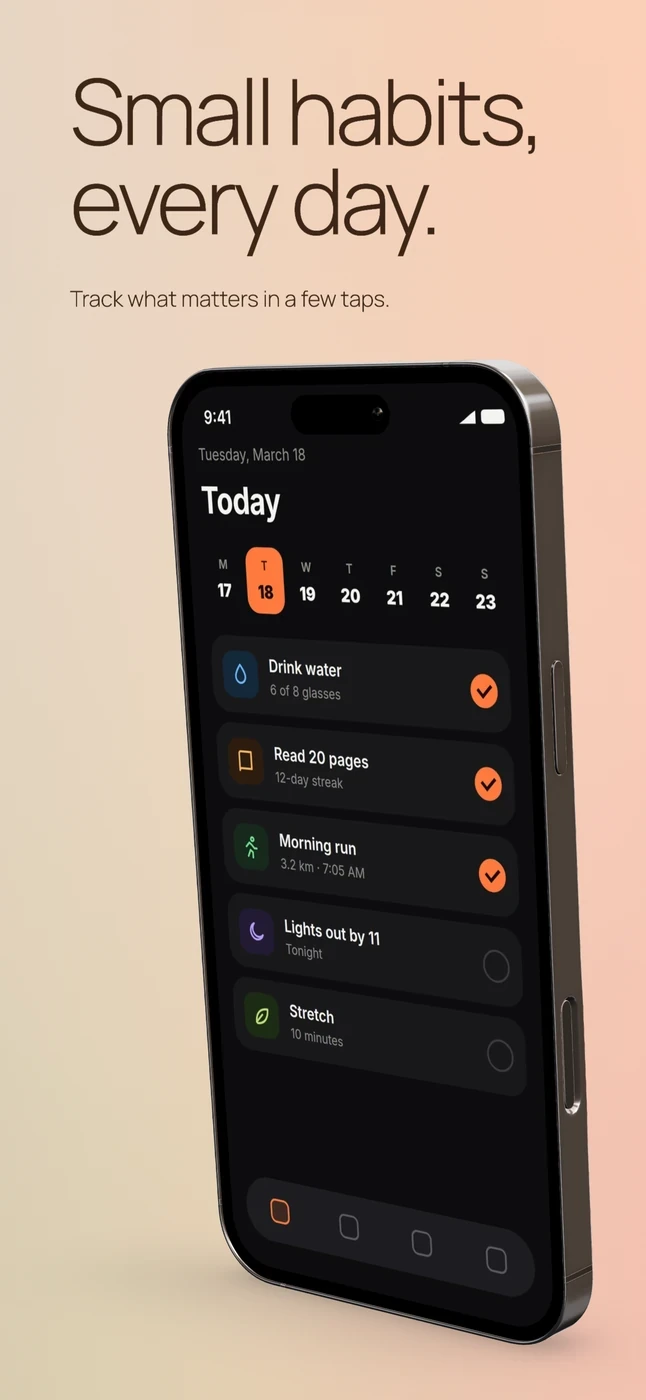
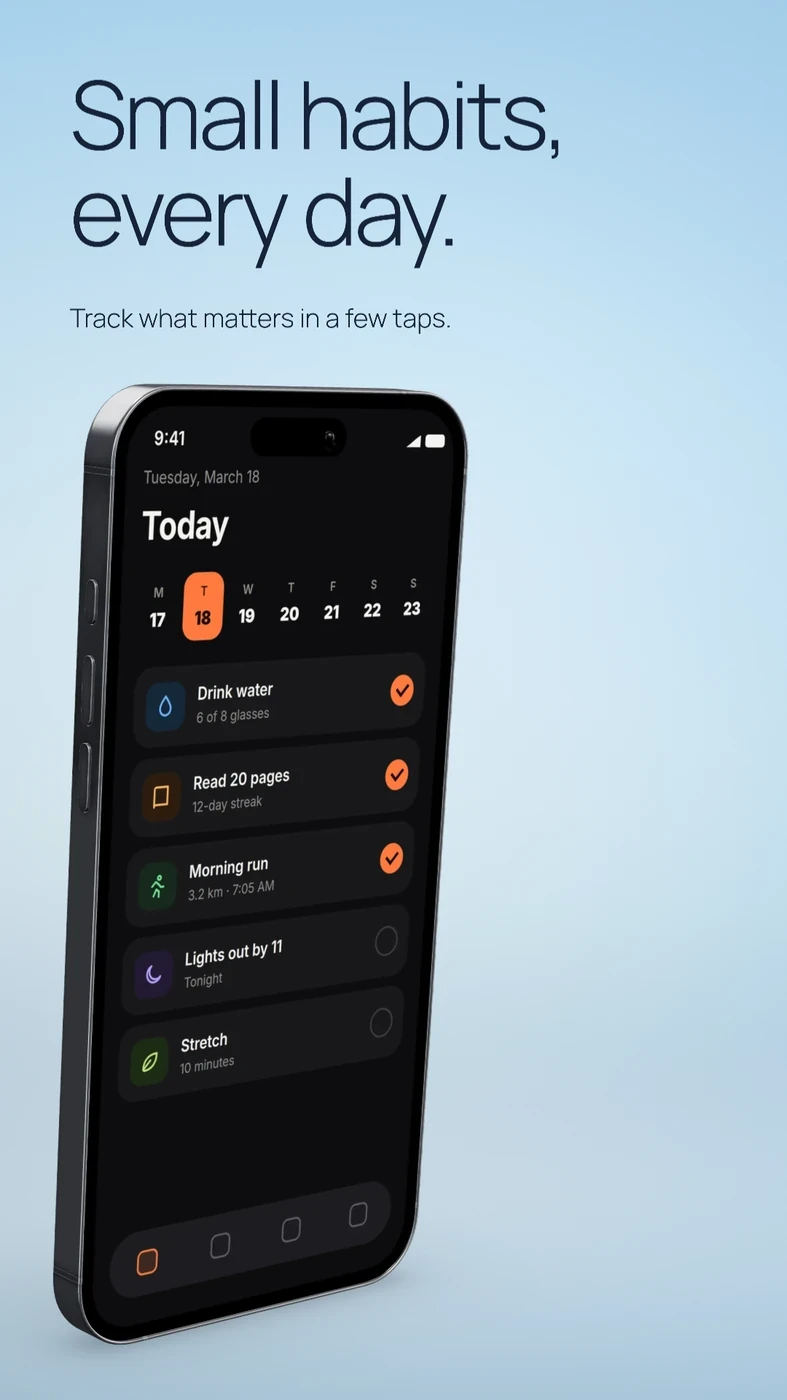
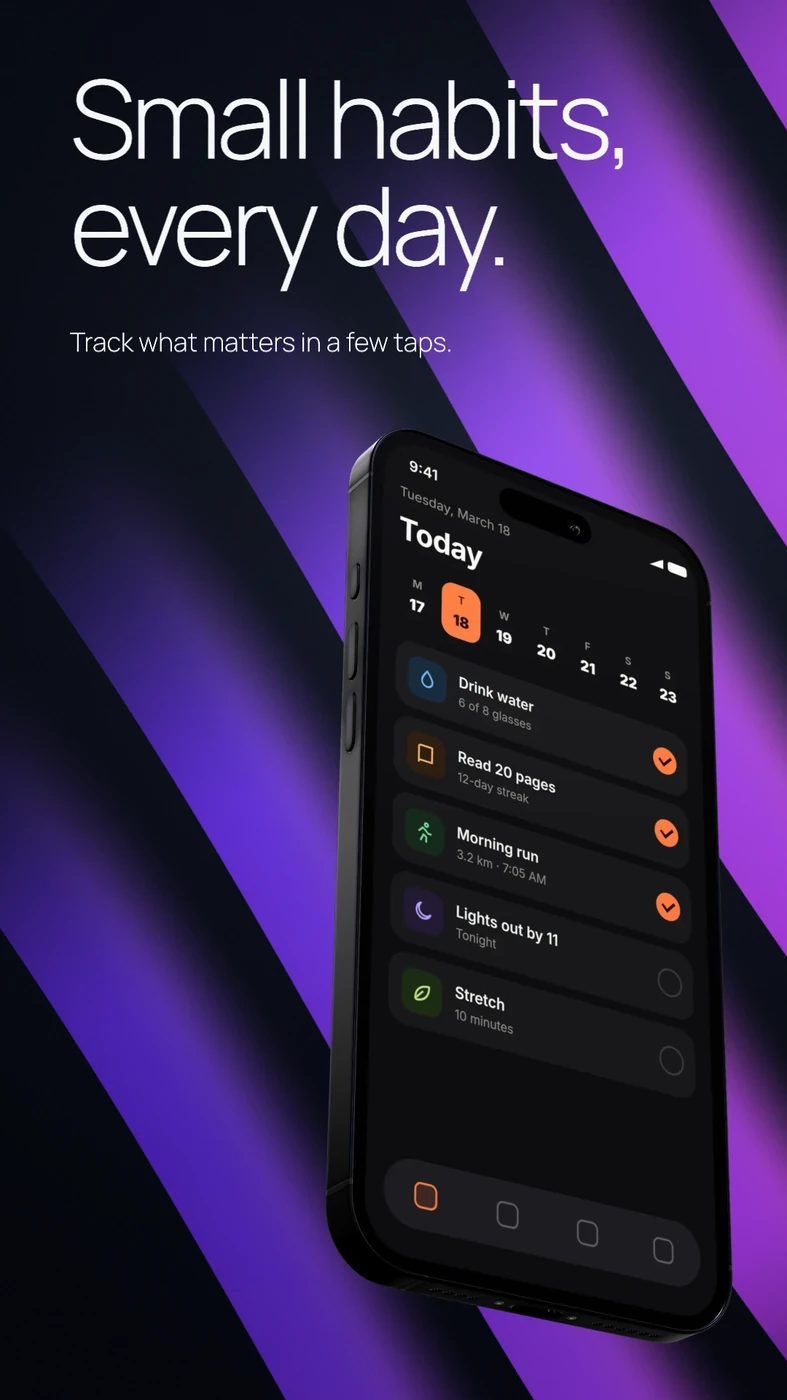
Small habits, every day. The sky composition as a Product Hunt image.
Product Hunt1270 × 760
Small habits, every day. The sky composition as a X image.
X1600 × 900
Small habits, every day. The sky composition as a LinkedIn image.
LinkedIn1200 × 627
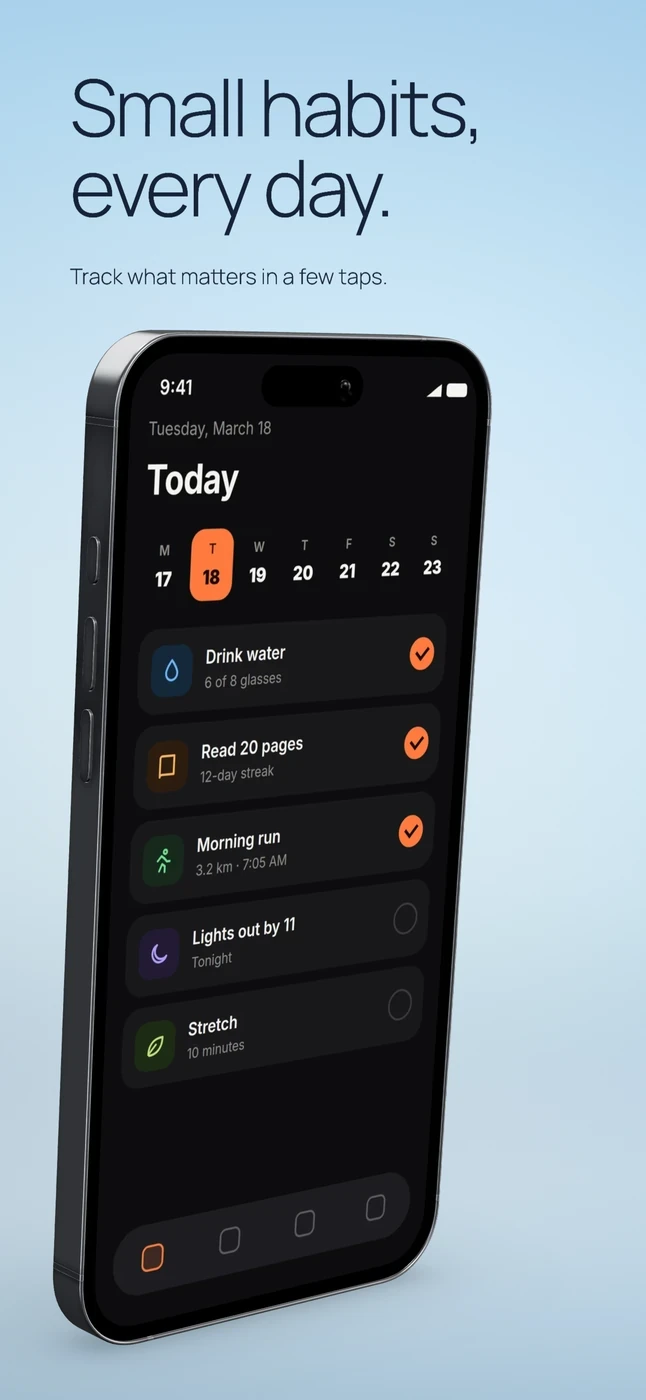
Small habits, every day. The sky composition as a App Store image.
App Store1290 × 2796
Small habits, every day. The sky composition as a Google Play image.
Google Play1080 × 1920
Sky · five sizes from one template

Pick a starting point.

Open the same editor with the right setup.

All tools

Questions people ask.

Is DeioLab free?

Yes. Open the editor and start. There is no account to create.

Are my screenshots uploaded?

No. Images stay in your browser and are saved on your device, so you can close the tab and pick up later.

What can I export?

PNG at 1× or 2×, a transparent device cutout, one PNG per layer, a ZIP of several sizes, and MP4 when a screen moves.

Does it work on a phone?

Yes. The editor adapts to phones and tablets, though a laptop gives you the most room.