Add a background to a screenshot.
Put your screenshot on paper, a gradient, or a generated color field. Choose the surface and palette behind your image, then download the composition.
Drag to move. Choose spacing, corners, and shadow. Your images stay on this device.
Choose a surface for your screenshot.
All screenshot toolsAdd your screenshot.
Upload a PNG, JPEG or WebP, drop it onto the canvas, or paste it.
Choose the surface.
Compare paper, light, and dark treatments. Use Shuffle for a different background recipe, then refine its colors.
Download it.
Choose a size and export your image. Open in editor if you want to add text or more images.
Compare the surface behind the same screenshot.
Choose a backdrop that supports the screenshot’s colors and contrast. These exports keep the source image and balanced spacing while changing the background.
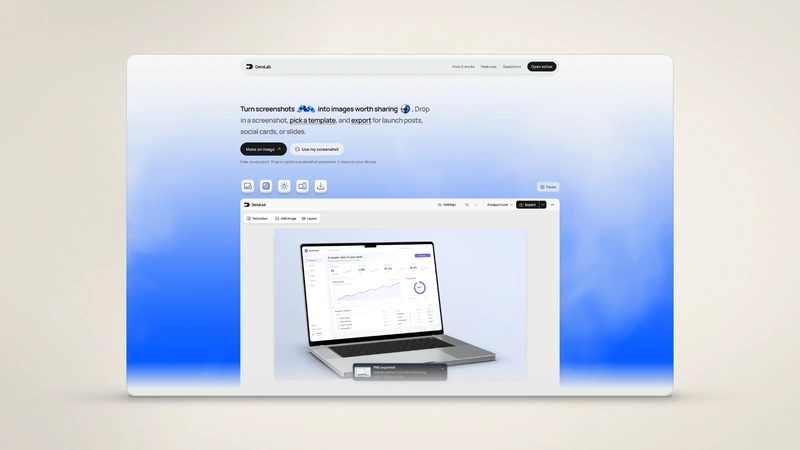
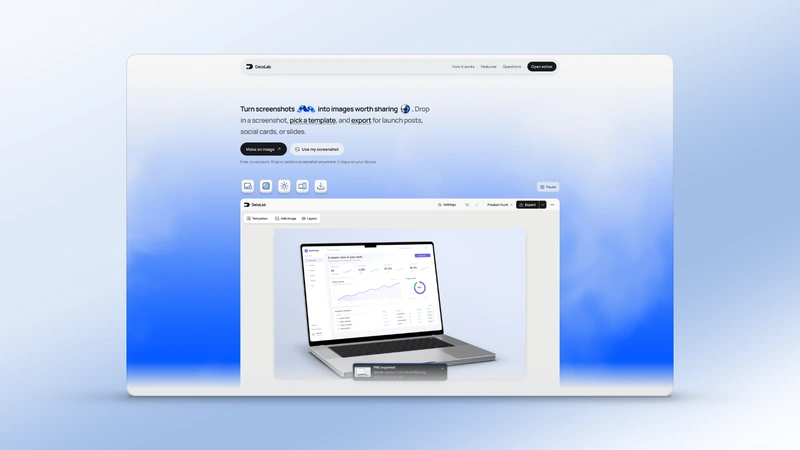
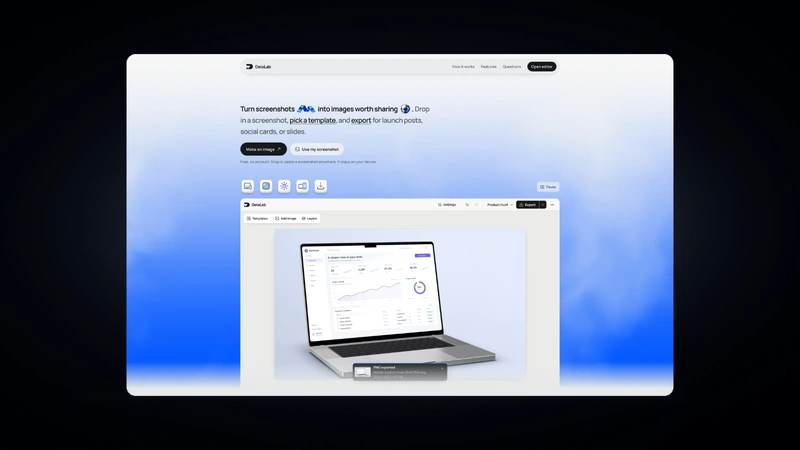
Real DeioLab exports using a screenshot of the DeioLab website.
Questions people ask.
Is this free?
Yes. Edit and download without an account, subscription, or watermark.
Are my screenshots uploaded?
No. Images open, render, save, and export locally in your browser.
Which screenshots can I use?
Upload a PNG, JPEG or WebP, paste it, or drop it onto the canvas. Replace the screenshot whenever you need.
Can I make more changes?
Yes. Open in editor to add text, change frames, or build a coordinated gallery. This tool keeps its own local draft.
Will this change my saved editor project?
No. Open in editor asks before replacing an existing workspace, and Undo restores that workspace.