Typography for app screenshots.
Write shorter headlines, establish a clear hierarchy, and let the app screen lead. A practical guide to type in screenshot compositions.
Start with one short headline. Keep supporting text optional, align the set consistently, and judge every slide at the size people will actually see.
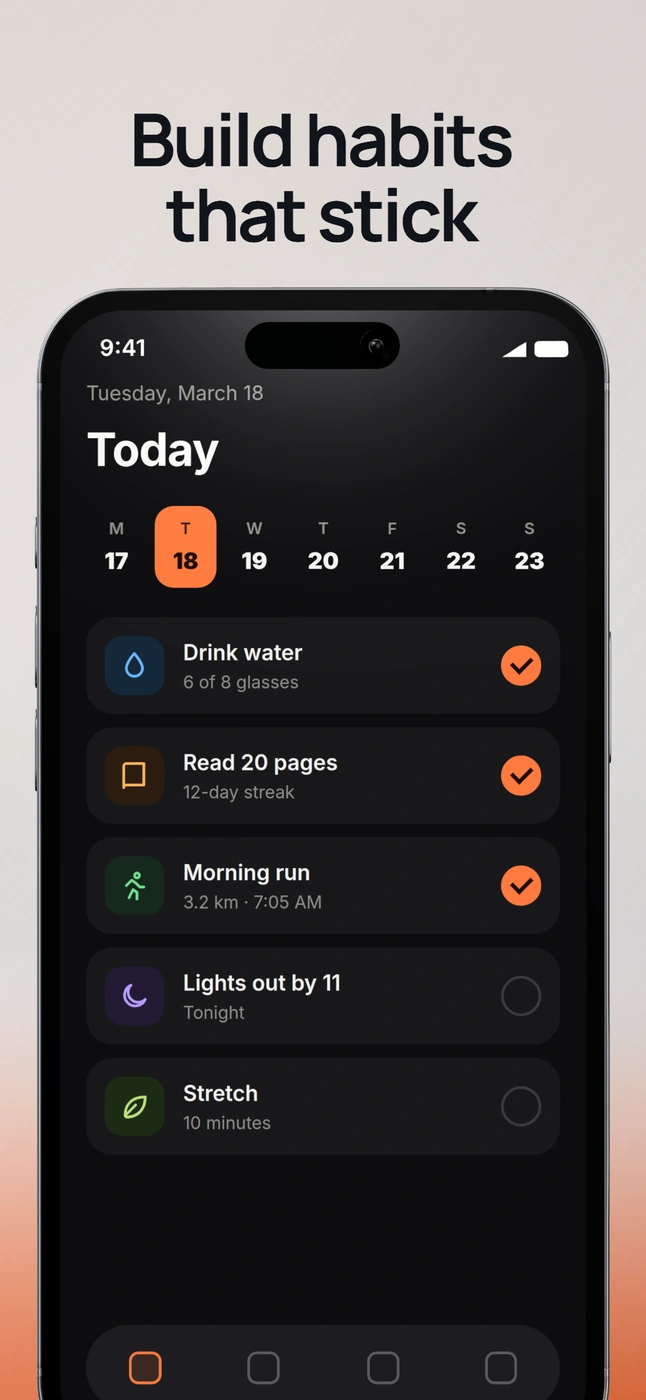
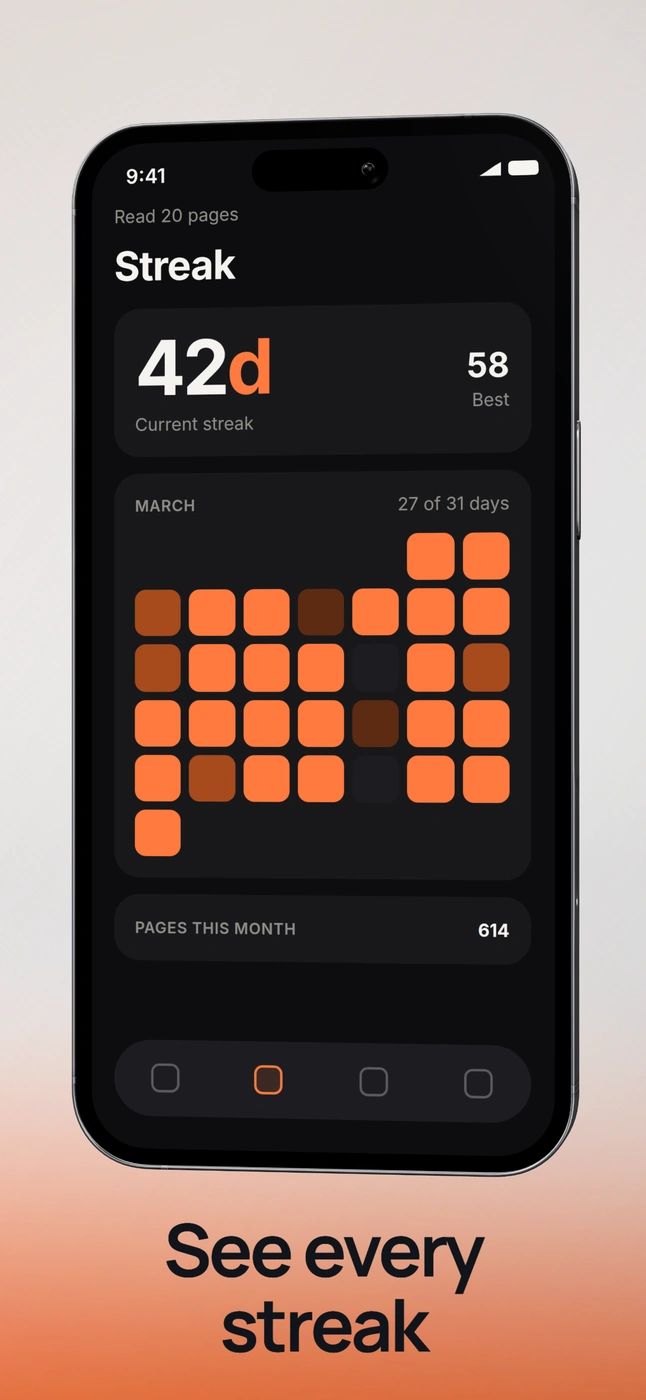
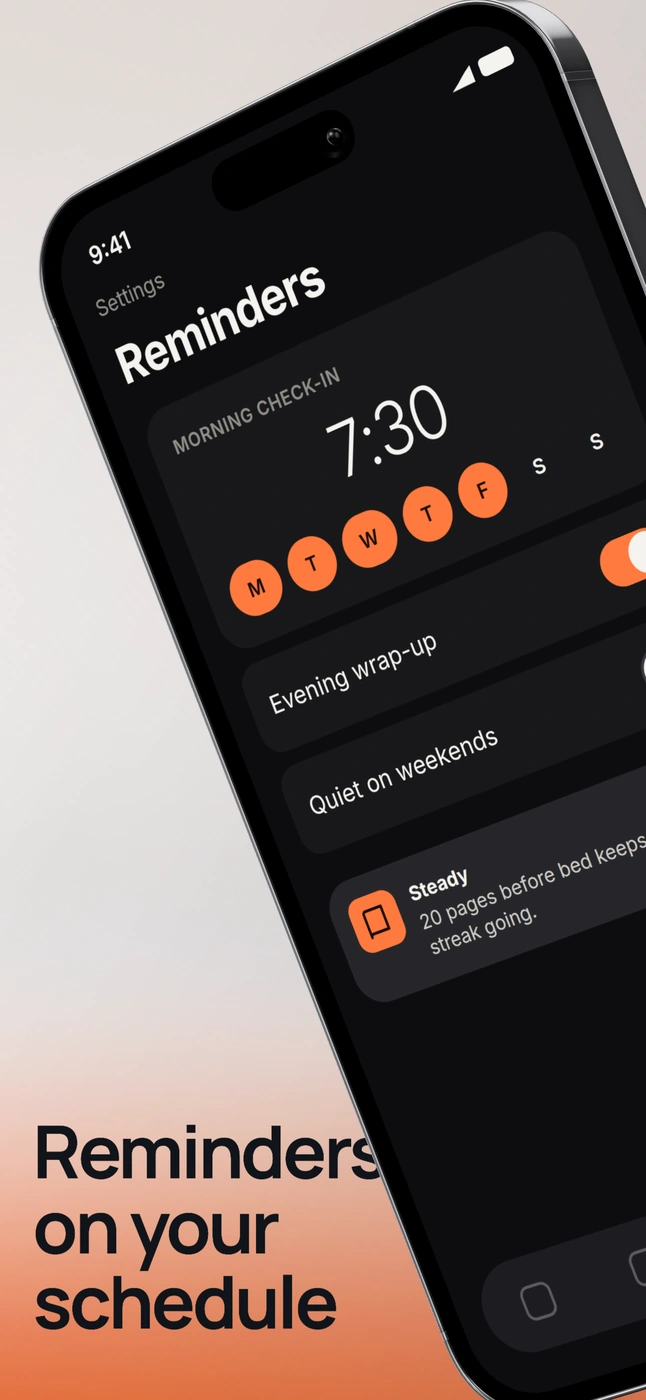
Give each slide one message.
A screenshot already contains labels, values, and controls. The headline should explain why this particular screen matters, rather than repeat every visible label. Choose the feature or outcome the screen can actually support.
For a habit tracker, “See every streak” gives a history screen a clear purpose. “Your powerful personal productivity dashboard” asks people to decode a broad claim before they can read the product. Prefer the specific action shown on screen.
Draft the sequence before styling it. Write one sentence per slide, then cut words until each headline expresses a single idea. If two ideas compete, move one to another slide. Never add ratings, customer quotes, or performance claims without a real source.
Set a hierarchy before choosing a size.
Use a clear headline and, only when needed, one supporting line. Keep the support visibly smaller and quieter. A second bold paragraph often reads as a competing headline.
Start with one typeface and two weights. Use sentence case for phrases; reserve uppercase for short labels that remain legible. Keep the headline’s size and weight consistent across the set, adjusting wrapping before changing scale.
There is no universal font size for every canvas and crop. Begin with the screenshot as the largest visual element, add type in the remaining space, and reduce the whole composition to a thumbnail. If the headline overwhelms the app, shorten it or reduce its size. If it vanishes, remove competing detail before enlarging it.
Give words and UI separate space.
Keep the headline away from the app’s own navigation and important controls. On portrait store slides, a short heading above the device often works well. For a wide image, a text column beside the screenshot can preserve more readable UI.
Break lines at meaningful phrases. “Build habits / that stick” is easier to scan than a final line containing only “stick.” Avoid forcing every slide to the same line count when that creates awkward wording.
Keep a repeatable outer margin and a deliberate gap between text and screenshot. When copy runs long, edit the words first. Then try a wider text area or a different layout. Shrinking all text to squeeze in a paragraph usually weakens the hierarchy.
Check the surface behind the words.
Use a quiet part of the background for copy. A color that looks readable on one part of a gradient may disappear where the gradient becomes brighter. Check the whole text block, including the smallest supporting line.
On textured or brightly colored backgrounds, simplify the surface or move the text before adding outlines and heavy shadows. Keep supporting text readable; making it almost transparent does not create a useful hierarchy.
Test light and dark treatments separately. In DeioLab, inspect the exported PNG as well as the canvas so the result you approve is the one you share.
Review the set at listing size.
- View every slide together. Headline positions and margins should feel related.
- Reduce the images until they resemble thumbnails on a phone. Can you understand each message without zooming?
- Read the sequence aloud. Remove repetition and unsupported claims.
- Check the longest headline and smallest supporting line in the exported files.
Create a set with theApp Store screenshot generatororGoogle Play screenshot generator. For a single image, use thescreenshot beautifier. For a wider launch sequence, readhow to design a Product Hunt gallery.