Open Graph image generator.
Turn a screenshot and a short headline into a 1200 × 630 image for your website’s link previews.
1200 × 630 at 1×. Link-preview crops vary by platform; keep key content away from the edges.
Create your link preview.
All screenshot toolsAdd your screenshot.
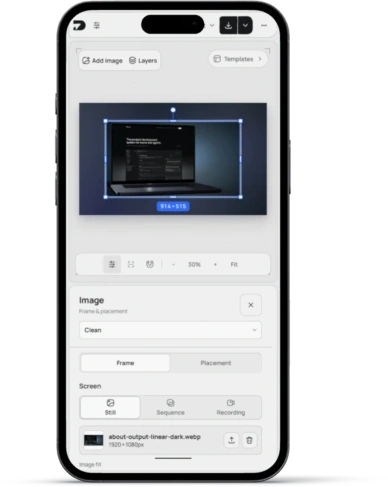
Upload, paste, or drop an image. Your file stays on this device.
Write a clear headline.
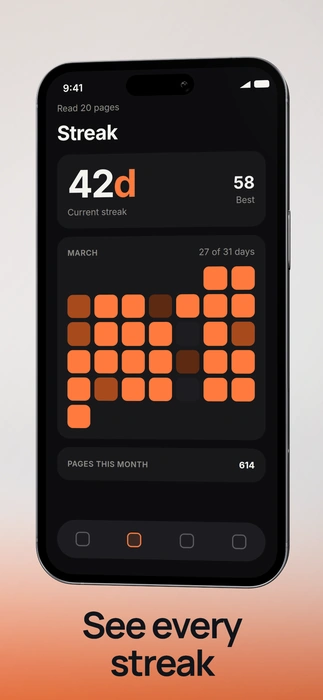
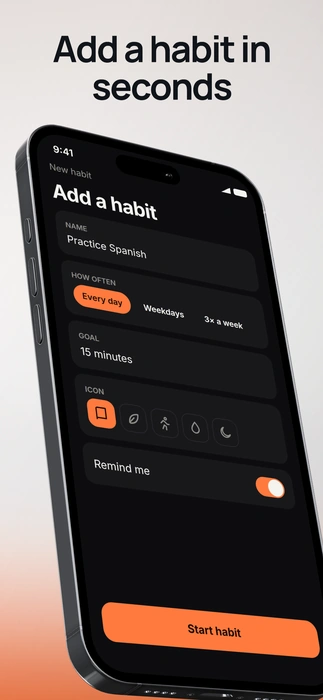
Add an optional supporting line and choose a composition using your real screenshot.
Download and publish.
Export at 1×, host the image at a public HTTPS URL, and reference it in your page’s og:image metadata.
Add the image to your website.
Download at 1×, publish the image at a public HTTPS URL, then add these tags inside your page’s HTML head. Replace the example URL and description with your own.
<meta property="og:image" content="https://example.com/images/share.png" />
<meta property="og:image:width" content="1200" />
<meta property="og:image:height" content="630" />
<meta property="og:image:alt" content="A short description of your image" />
Test the published page’s link preview on the platforms where you plan to share it. This generator creates the image; hosting and preview-cache updates happen on your site and the sharing platform.
More tools.
View all tools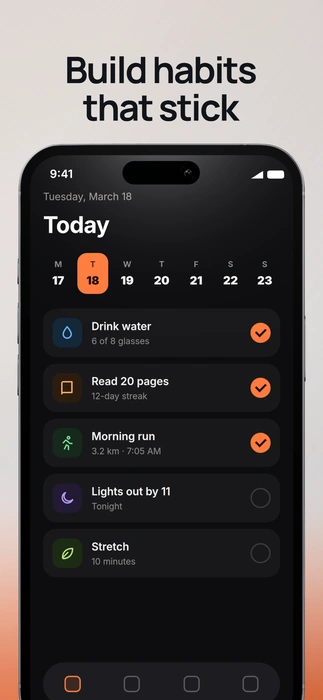
Questions people ask.
What size is the Open Graph image?
The canvas is 1200 × 630 pixels. Export at 1× for that size. Platforms may crop link previews differently; keep important content away from the edges.
Does this add the image to my website?
No. Download the file, host it at a public HTTPS URL, and set your page’s og:image metadata to that URL.
Is this free?
Yes. Edit and download without an account, subscription, or watermark.
Are my screenshots uploaded?
No. Images open, render, save, and export locally in your browser.
Which screenshots can I use?
Upload a PNG, JPEG or WebP, paste it, or drop it onto the canvas. Replace the screenshot whenever you need.
Can I make more changes?
Yes. Open in editor to add text, change frames, or build a coordinated gallery. This tool keeps its own local draft.
Will this change my saved editor project?
No. Open in editor asks before replacing an existing workspace, and Undo restores that workspace.